Most initial setup problems in MuseTalk stem from missing, misnamed, or misplaced model checkpoint files rather than Python code bugs. Because MuseTalk coordinates an ensemble of specialized networks—including latent autoencoders, speech feature extractors, facial landmark detectors, and parsing models—having even a single file absent or tucked inside a nested subfolder stops the generation pipeline from starting.
This reference provides the complete file manifest, official download links, exact folder layouts, verification commands, and fixes for common placement mistakes. If you have not yet created your Python environment, begin with our primary installation walkthrough: MuseTalk Installation: Choose Your Setup (for Linux and Cloud) or How to Install MuseTalk on Windows: Complete Setup Guide.
Why MuseTalk Requires Multiple Model Files
In contrast to single-file diffusion pipelines, MuseTalk divides audio-driven lip animation into distinct tasks handled by dedicated pretrained models:
- MuseTalk UNet Generator: The primary synthesis network that generates lip and jaw latents matching the speech audio. Version 1.5 uses
unet.pthwithmusetalk.jsoninsidemodels/musetalkV15/. Version 1.0 usespytorch_model.binwithmusetalk.jsoninsidemodels/musetalk/. - Stability AI SD-VAE: Encodes input video frames into latent representations and decodes predicted latents back into full-resolution RGB frames.
- OpenAI Whisper Tiny: Converts raw audio into phonetic feature embeddings synchronized with 25 FPS video frames.
- DWPose: Detects facial keypoints and head orientation to define the target face crop and bounding box.
- Face Parsing (BiSeNet & ResNet18): Identifies face boundaries to blend synthesized mouth regions cleanly into original frames.
- SyncNet (Optional for Inference): Measures audio-lip synchronization quality during model training; not required for running standard inference.
Which Download Method Should I Use?
Choose the method that fits your setup and network environment:
- Automated Script Method: Use this for a fresh standalone installation when the repository script and its prerequisites run without issues in your environment.
- Individual / Manual Method: Use this for missing files, failed script downloads, restricted networks, proxy environments, or when downloading only the files needed for a specific version.
Pick one method. You do not need to download everything twice. Both methods produce the identical required folder layout. Run all terminal commands from the cloned MuseTalk/ root directory with your conda environment activated.
Method 1: Automated Script Downloads
The official repository provides automated scripts for Linux and Windows. Make sure to run the script matching your operating system and active shell.
Linux / macOS (Bash)
Install the download prerequisites inside your active conda environment, then execute the shell script from the repository root:
# Install script prerequisites
pip install -U "huggingface_hub[cli]" gdown

# Run the download script
bash download_weights.sh
Windows (Command Prompt / PowerShell)
On Windows, install the Hugging Face CLI tools and run the batch file. Do not run the Linux shell script in Windows Command Prompt or PowerShell.
In Windows Command Prompt (cmd.exe):
pip install -U "huggingface_hub[hf_xet]"
download_weights.bat
In Windows PowerShell:
pip install -U "huggingface_hub[hf_xet]"
.\download_weights.bat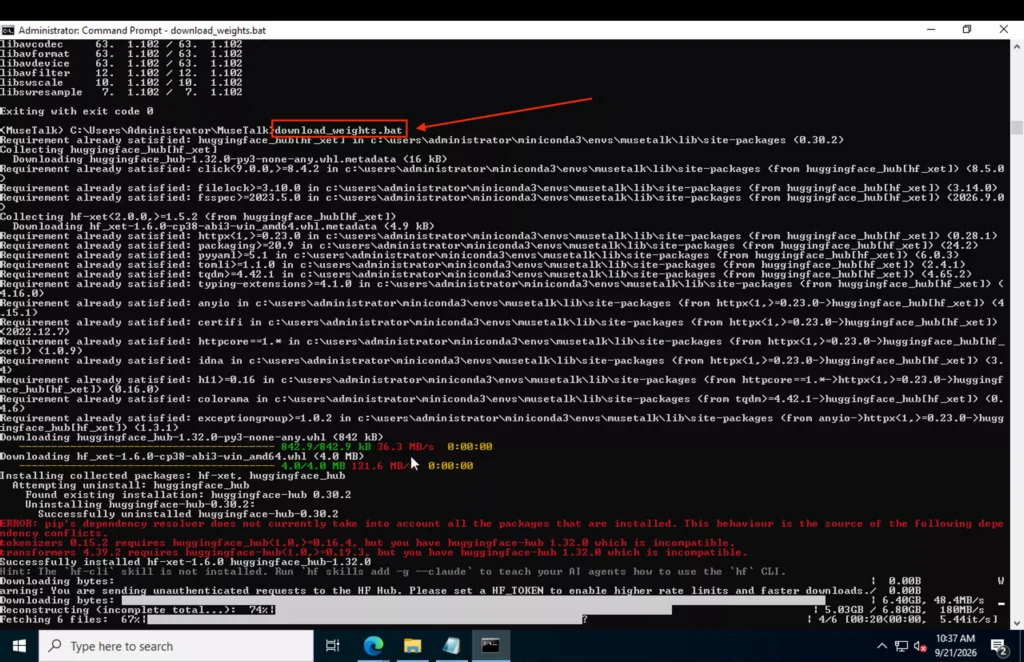
Troubleshooting Note: The batch and shell scripts download both MuseTalk 1.0 and 1.5 weights. If an automated download of the face parsing checkpoint (79999_iter.pth) fails because of Google Drive rate limits, obtain that single file manually using the commands in Method 2.
Method 2: Individual and Targeted Downloads (CLI & Browser)
Targeted individual downloads give you direct control over what files enter your environment. This approach is recommended when you want to avoid overwriting pinned package versions, only need MuseTalk 1.5, or operate behind corporate firewalls.
Targeted CLI Commands
From inside your cloned MuseTalk/ root directory, create the target folders and download each required component:
# Create destination folders
mkdir -p models/musetalkV15 models/sd-vae models/whisper models/dwpose models/syncnet models/face-parse-bisent

# 1. MuseTalk 1.5 Generator (recommended version)
huggingface-cli download TMElyralab/MuseTalk musetalkV15/musetalk.json musetalkV15/unet.pth --local-dir models

# 2. SD-VAE (diffusers accepts either .bin or .safetensors; .bin matches official scripts)
huggingface-cli download stabilityai/sd-vae-ft-mse config.json diffusion_pytorch_model.bin --local-dir models/sd-vae

# 3. Whisper Tiny (speech encoder)
huggingface-cli download openai/whisper-tiny config.json pytorch_model.bin preprocessor_config.json --local-dir models/whisper

# 4. DWPose (facial landmark estimation)
huggingface-cli download yzd-v/DWPose dw-ll_ucoco_384.pth --local-dir models/dwpose

# 5. Face Parse BiSeNet & ResNet18
gdown --id 154JgKpzCPW82qINcVieuPH3fZ2e0P812 -O models/face-parse-bisent/79999_iter.pth
curl -L https://download.pytorch.org/models/resnet18-5c106cde.pth -o models/face-parse-bisent/resnet18-5c106cde.pth

# 6. SyncNet (optional for inference; required for training and sync evaluation)
huggingface-cli download ByteDance/LatentSync latentsync_syncnet.pt --local-dir models/syncnet
Alternative CLI command for Face Parse: If gdown fails due to Google Drive quotas, download 79999_iter.pth from the Hugging Face mirror: huggingface-cli download ManyOtherFunctions/face-parse-bisent 79999_iter.pth --local-dir models/face-parse-bisent.
Manual Browser Downloads
If you are working on a machine without terminal internet access or prefer using your browser, download each file directly from the official repositories listed in the manifest table below. After downloading, move each file into its designated subfolder inside models/ without creating extra nested folders.
Complete Model Manifest Table
The table below details every component, its required filenames, destination folder relative to the repository root, official source link, and status for standard inference:
| Component | Exact Filename(s) | Destination Folder | Official Repository Source | Status |
|---|---|---|---|---|
| MuseTalk 1.5 | musetalk.jsonunet.pth |
models/musetalkV15/ |
Hugging Face: TMElyralab/MuseTalk | Required (for v1.5 inference) |
| MuseTalk 1.0 (Legacy) | musetalk.jsonpytorch_model.bin |
models/musetalk/ |
Hugging Face: TMElyralab/MuseTalk | Optional (only for v1.0 workflows) |
| Stability AI SD-VAE | config.jsondiffusion_pytorch_model.bin or diffusion_pytorch_model.safetensors (choose one weight file) |
models/sd-vae/ |
Hugging Face: stabilityai/sd-vae-ft-mse | Required |
| OpenAI Whisper Tiny | config.jsonpytorch_model.binpreprocessor_config.json |
models/whisper/ |
Hugging Face: openai/whisper-tiny | Required |
| DWPose | dw-ll_ucoco_384.pth |
models/dwpose/ |
Hugging Face: yzd-v/DWPose | Required |
| Face Parse BiSeNet | 79999_iter.pth |
models/face-parse-bisent/ |
Official Google Drive / HF Mirror | Required |
| Face Parse ResNet18 | resnet18-5c106cde.pth |
models/face-parse-bisent/ |
PyTorch Official CDN | Required |
| SyncNet | latentsync_syncnet.pt |
models/syncnet/ |
Hugging Face: ByteDance/LatentSync | Optional (training & evaluation only) |
Accurate Folder Tree (MuseTalk 1.0 vs. 1.5 Separation)
All model weights sit under ./models/ at the project root. MuseTalk 1.0 and 1.5 occupy separate subdirectories. If you only intend to run MuseTalk 1.5, use models/musetalkV15/ for the generator and keep all required shared-model directories below; the legacy models/musetalk/ folder is not required (SyncNet is also optional for standard inference). Both can also sit side by side without conflict:
./models/
├── musetalk/                    # MuseTalk 1.0 weights (optional, legacy only)
│   ├── musetalk.json
│   └── pytorch_model.bin
├── musetalkV15/                 # MuseTalk 1.5 weights (recommended)
│   ├── musetalk.json
│   └── unet.pth
├── sd-vae/                      # AutoencoderKL weights
│   ├── config.json
│   └── diffusion_pytorch_model.bin
├── whisper/                     # Whisper Tiny speech feature extractor
│   ├── config.json
│   ├── pytorch_model.bin
│   └── preprocessor_config.json
├── dwpose/                      # Face landmark estimation
│   └── dw-ll_ucoco_384.pth
├── face-parse-bisent/           # Face segmentation models
│   ├── 79999_iter.pth
│   └── resnet18-5c106cde.pth
└── syncnet/                     # Audio-lip sync evaluation (optional for inference)
    └── latentsync_syncnet.pt
VAE Format Details: .bin vs. .safetensors
The VAE component is loaded using diffusers AutoencoderKL.from_pretrained("./models/sd-vae"). Diffusers natively accepts either diffusion_pytorch_model.bin or diffusion_pytorch_model.safetensors, provided config.json is located in the same folder.
The official repository scripts download diffusion_pytorch_model.bin. You do not need to download both formats. Storing either the .bin file or the .safetensors file satisfies the loader requirements.
Distinguishing Configuration Files from Model Weights
A common misunderstanding among beginners is assuming that small files are corrupted downloads. In machine learning setups, configuration files and weight files serve different purposes:
- Configuration Files (Text / JSON): Files such as
musetalk.json,config.json, andpreprocessor_config.jsoncontain text metadata describing network architecture parameters. Sizes vary by file: the MuseTalk configuration is 748 bytes, while Whisper’spreprocessor_config.jsonis 184,990 bytes at the revisions listed below. Validate the JSON and compare the exact source file rather than applying one size range to all configurations. - Model Weights (Binary Tensors): Files such as
unet.pth,diffusion_pytorch_model.bin,pytorch_model.bin,dw-ll_ucoco_384.pth,79999_iter.pth, andresnet18-5c106cde.pthcontain trained parameters and range from about 47 MB to 3.40 GB for the files listed here (decimal units).
A binary weight file under 1 KB is an obvious warning, but larger files can also be incomplete. HTML error pages and Git LFS pointer files are not model weights. Compare the exact byte count and SHA-256 hash with the source file; a plausible size alone does not establish integrity.
How to Verify Your Model Files
Before executing your first inference command, run these commands from the cloned MuseTalk/ root. Compare the listing with the required-file manifest: v1.5 needs 10 files across five component directories, with one VAE weight format. Check exact spelling and capitalization, especially musetalkV15, and avoid an extra nested models/models/ directory. The listing checks placement; use byte counts and hashes below to check download integrity.
On Linux or macOS (Bash):
find ./models -type f -exec ls -lh {} +On Windows Command Prompt:
dir /s modelsOn Windows PowerShell:
Get-ChildItem -Recurse models | Select-Object FullName, Length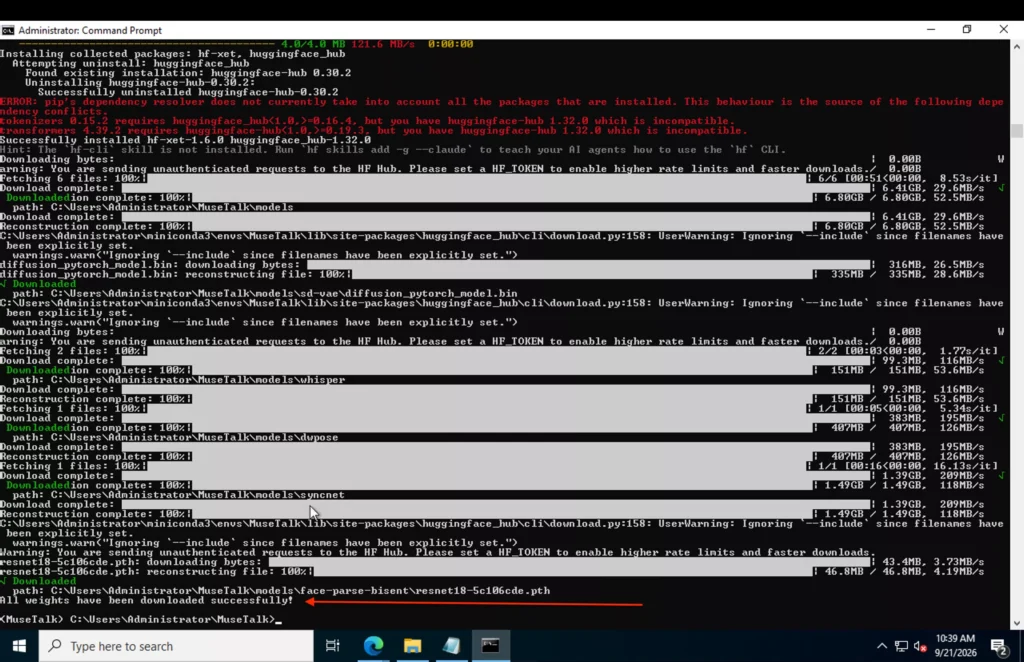
File Size Verification Reference
Verified on 25 September 2026 against the linked repository revisions. Byte counts are exact for those revisions; future revisions may differ. Open each binary file’s source page to compare its SHA-256 value. ResNet18’s 46,827,520-byte size also matches the official PyTorch CDN. The face-parsing mirror is a community repository referenced by the official Windows download script.
| Destination file | Bytes | Verified source revision |
|---|---|---|
models/musetalkV15/musetalk.json | 748 | Source file |
models/musetalkV15/unet.pth | 3,400,074,924 | Source file and hash |
models/sd-vae/config.json | 547 | Source file |
models/sd-vae/diffusion_pytorch_model.bin | 334,707,217 | Source file and hash |
models/sd-vae/diffusion_pytorch_model.safetensors (alternative) | 334,643,276 | Source file and hash |
models/whisper/config.json | 1,983 | Source file |
models/whisper/preprocessor_config.json | 184,990 | Source file |
models/whisper/pytorch_model.bin | 151,095,027 | Source file and hash |
models/dwpose/dw-ll_ucoco_384.pth | 406,878,486 | Source file and hash |
models/face-parse-bisent/79999_iter.pth | 53,289,463 | Source file and hash |
models/face-parse-bisent/resnet18-5c106cde.pth | 46,827,520 | Source file and hash |
models/musetalk/musetalk.json (legacy only) | 748 | Source file |
models/musetalk/pytorch_model.bin (legacy only) | 3,400,076,549 | Source file and hash |
models/syncnet/latentsync_syncnet.pt (optional for inference) | 1,488,019,828 | Source file and hash |
Check a SHA-256 hash: For example, compare the MuseTalk 1.5 generator with 7ebf6c98c181e20838e4c0054e96e944ac60d5d692cc01db42839fe11b787007 at the source revision above. Use the matching command for your shell; repeat for other binary files with their own published hashes.
# Linux
sha256sum models/musetalkV15/unet.pth

# macOS
shasum -a 256 models/musetalkV15/unet.pth

# Windows PowerShell
Get-FileHash models/musetalkV15/unet.pth -Algorithm SHA256

# Windows Command Prompt
certutil -hashfile models\musetalkV15\unet.pth SHA256
Check configuration syntax with python -m json.tool models/musetalkV15/musetalk.json; repeat for the VAE and Whisper JSON files. A syntax check does not validate the model architecture. After the file checks pass, return to installation Step 7 and continue to the version-matched inference command. These checks establish file placement and integrity; successful GPU inference still depends on the environment and input files.
Fixes for Common Placement and Weight Errors
1. Accidental Nested Directory Mistake:
Extracting zip archives or using certain browser download tools can generate an extra folder level (for example, models/whisper/whisper-tiny/config.json). Files must sit directly in their designated parent folder (e.g., models/whisper/config.json). Move the files up one level and delete the extra directory.
2. Folder Naming Discrepancies:
The SD-VAE folder must be named models/sd-vae, not models/sd-vae-ft-mse. MuseTalk scripts look specifically for sd-vae by default.
3. Working Directory and Relative Paths:
If inference throws FileNotFoundError: [Errno 2] No such file or directory: './models/...', you are running python from outside the repository root. Ensure your active working directory in your terminal is the root MuseTalk/ folder.
4. Model Version Argument Conflicts:
If you see state dictionary errors such as Missing key(s) in state_dict or size mismatch, your command is pointing to a configuration or checkpoint from a different version. When running MuseTalk 1.5, verify your launch arguments specify --unet_model_path models/musetalkV15/unet.pth, --unet_config models/musetalkV15/musetalk.json, and --version v15.
5. Incomplete or Corrupt Downloads:
If a checkpoint throws EOF or pickle unpickling errors upon loading, check the file size. If the weight file is smaller than expected or contains HTML markup, remove the corrupted file and re-download it via the direct links.
ComfyUI Path Differences (Separate Integration)
Keep standalone MuseTalk and ComfyUI configurations clearly separated. The community node ComfyUI-MuseTalk uses an entirely different weight structure under the ComfyUI models tree:
ComfyUI/models/diffusers/TMElyralab/MuseTalk/
├── musetalk/
│   ├── musetalk.json
│   └── pytorch_model.bin
├── dwpose/
│   └── dw-ll_ucoco_384.pth
├── face-parse-bisent/
│   ├── 79999_iter.pth
│   └── resnet18-5c106cde.pth
├── sd-vae-ft-mse/
│   ├── config.json
│   └── diffusion_pytorch_model.bin
└── whisper/
    └── tiny.pt
Notice two key differences in ComfyUI: the VAE folder is named sd-vae-ft-mse (rather than sd-vae), and the Whisper model requires tiny.pt directly from OpenAI’s CDN rather than the Hugging Face directory layout. Do not mix standalone and ComfyUI directories. For complete node installation instructions, refer to our dedicated guide: MuseTalk in ComfyUI: Full Setup Guide.
Once your model folder setup is complete and verified, head back to our main setup guide to execute your first lip-sync video: MuseTalk Installation: model files and next steps.