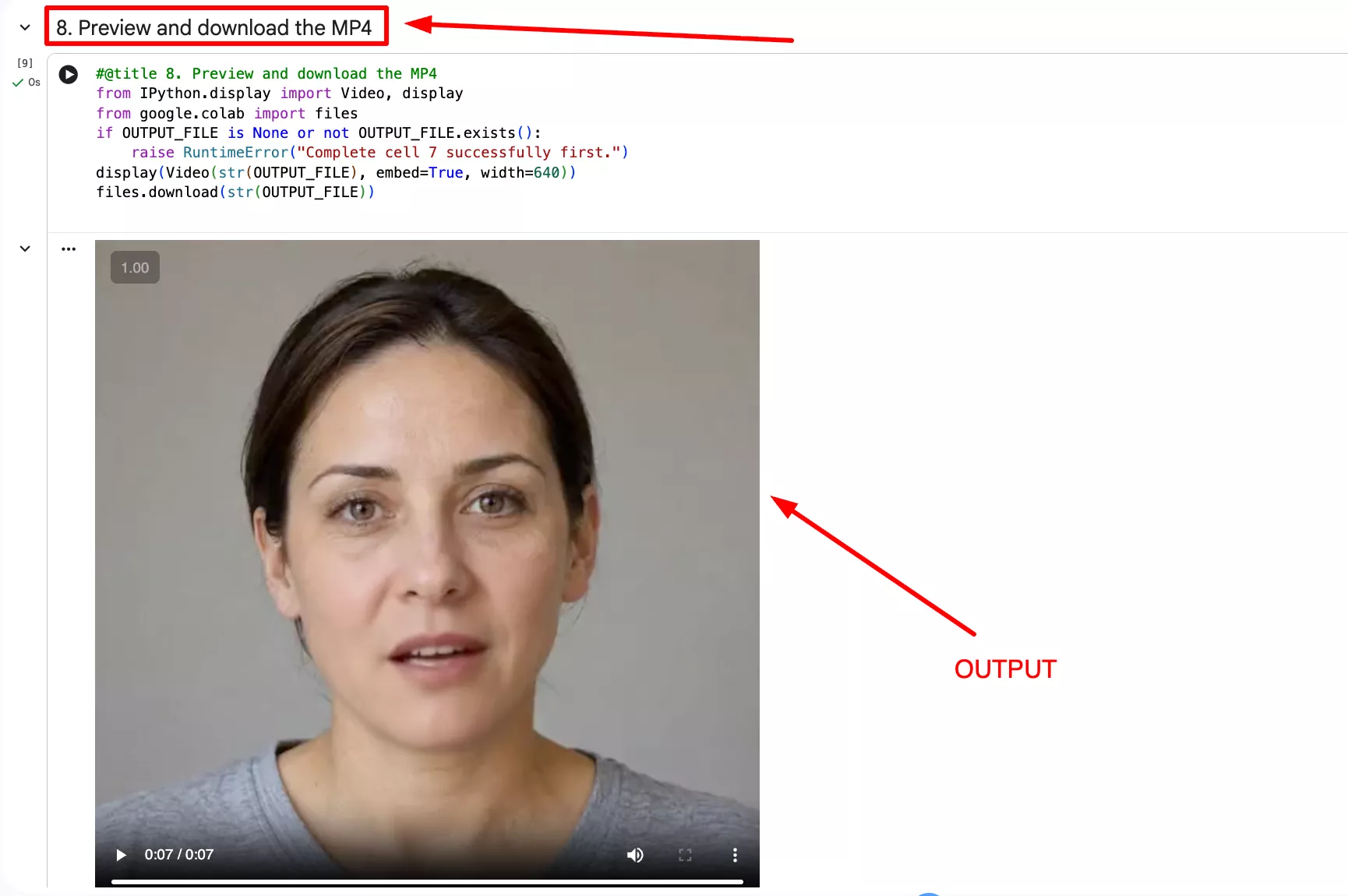
The supplied, executed notebook records a MuseTalk 1.5 test on a Google Colab Linux runtime with an NVIDIA Tesla T4. The notebook completed installation, passed its GPU checks, loaded the required models, and generated a 7.60-second MP4 with audio. The generation cell took 89.7 seconds in that run.
You can download the tested notebook below and run it with your own face photo or video and a speech recording. Colab handles the GPU work, so your computer does not need a local NVIDIA card.
The notebook follows our Linux installation guide, with package versions fixed for this setup.
Get the Tested MuseTalk Colab Notebook
The ZIP contains the original MuseTalk_1_5_Linux_Colab_tested.ipynb file, including the saved test output. Extract the ZIP first, then upload the .ipynb file to Colab. No other file is needed.
About the saved notes: the notebook’s opening testing note was written before this run. Its executed cells record the completed T4 test and the generated MP4. The download preserves the supplied file unchanged.
This is an independent notebook from musetalkai.com. It is not an official Colab release from the MuseTalk development team.
What Was Confirmed in the Colab Test?
| Item | Recorded result |
|---|---|
| Runtime | Linux x86_64 on Google Colab |
| GPU | NVIDIA Tesla T4; 15,360 MiB reported by nvidia-smi |
| NVIDIA driver | 580.82.07 |
| Python | 3.10.18 in a separate environment |
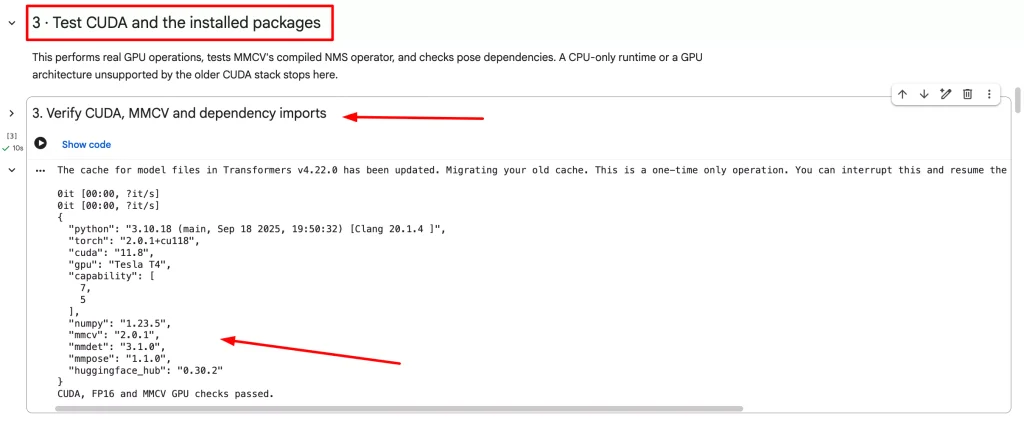
| PyTorch / CUDA build | PyTorch 2.0.1+cu118 / CUDA 11.8 |
| NumPy / Hugging Face Hub | 1.23.5 / 0.30.2 |
| MMLab packages | MMCV 2.0.1, MMDetection 3.1.0, MMPose 1.1.0 |
| GPU checks | CUDA, FP16 operations and the compiled MMCV NMS operator passed |
| Model checks | Ten required model files and the S3FD detector verified; DWPose, S3FD and face parsing loaded |
| Prepared media | 7.60 seconds of audio; 512 × 512 face video at 25 FPS |
| Result | MP4 with video and audio streams; 7.60-second video duration |
| Generation cell time | 89.7 seconds, including model loading and processing; installation and downloads excluded |
These figures describe one recorded run, not a speed guarantee. Clip length, face framing, GPU allocation and runtime load affect the time needed.
The notebook checked the output file and decoded it with FFmpeg before reporting success.
Before You Start
- A Google account and access to Google Colab.
- A GPU runtime. Select a T4 to match the recorded test.
- At least 25 GiB of free runtime storage before first setup. Model downloads total roughly 4.5 GB, with more space needed for packages and temporary frames.
- One clear face photo or a short video with the face visible throughout.
- One speech recording, such as WAV, MP3 or M4A.
- Media you own or have permission to animate.
This workflow does not require a Hugging Face token, Google Drive mount, local Python installation or Gradio link. Use short clips for the first run and keep the default settings until generation succeeds.
How to Run MuseTalk on Google Colab?
Open the Notebook and Select a T4 GPU
Extract the downloaded ZIP, then open Google Colab. Select File → Upload notebook and choose MuseTalk_1_5_Linux_Colab_tested.ipynb.
Select Runtime → Change runtime type → T4 GPU, save the setting, and connect to the runtime. Run the numbered cells from 1 through 8 in order. Wait for each cell to finish; if a cell reports an error, fix it before continuing.
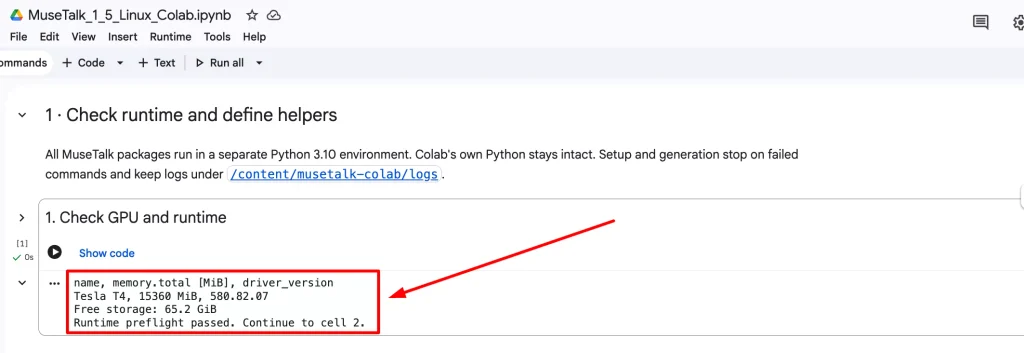
Cell 1: Check the GPU and Storage
The first cell confirms a Linux runtime, checks nvidia-smi, and reports available storage. Our test reported a Tesla T4 and 65.2 GiB of free space. If no GPU is detected, change the runtime type and rerun the cell.
Cell 2: Install the Fixed Package Versions
This cell installs Linux system packages and FFmpeg, creates a separate Python 3.10.18 environment, and downloads a fixed revision of the official MuseTalk code. It keeps Colab’s own Python environment separate from MuseTalk’s packages.
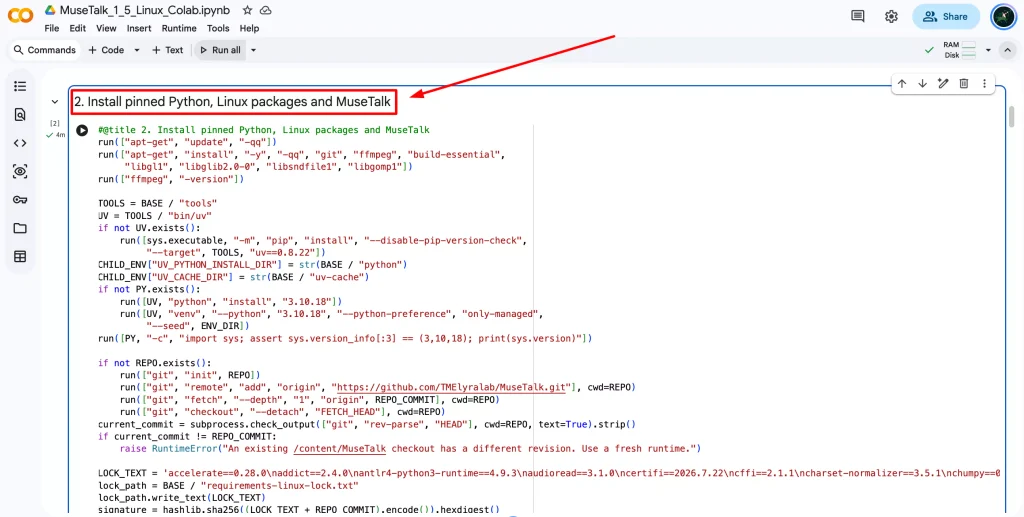
It installs PyTorch 2.0.1 with CUDA 11.8 support, the matching prebuilt MMCV package, MMDetection and MMPose. Chumpy is installed with build isolation disabled. A final package check must pass before setup is marked complete.
Allow this cell to finish. Do not add separate commands that upgrade PyTorch, NumPy, MMCV or Hugging Face Hub; those changes can break the tested version combination.
Cell 3: Check CUDA and Package Imports
This runs GPU operations and checks the compiled MMCV operator. The successful test ended with CUDA, FP16 and MMCV GPU checks passed. It also saves the environment details for troubleshooting.
Cell 4: Download and Check the Model Files
The notebook downloads the MuseTalk 1.5 model, SD-VAE, Whisper Tiny, DWPose, face-parsing files and S3FD detector. It checks file sizes and model hashes, then loads the face-processing models on the GPU.
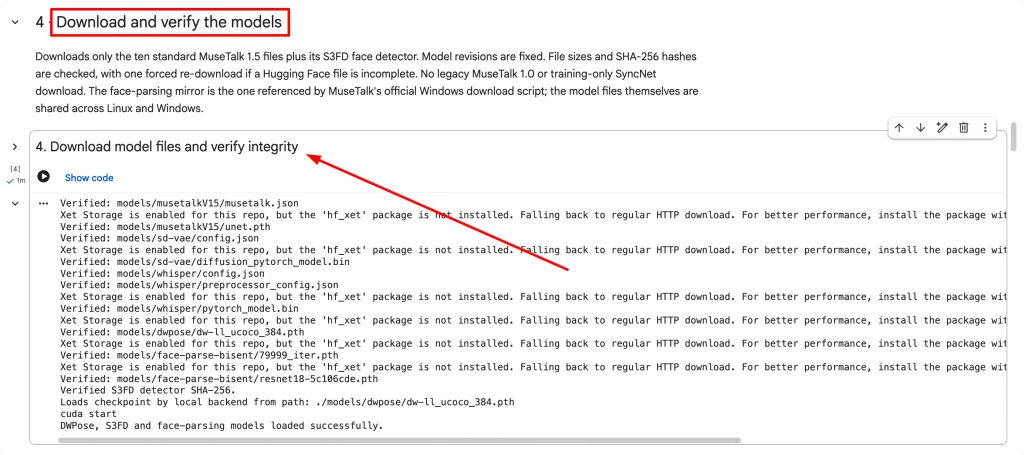
It skips the MuseTalk 1.0 model and training-only SyncNet file. If a download times out, rerun cell 4. Completed files are reused and checked again. See the model file guide for the folder layout.
Cell 5: Upload the Face File and Audio
The first file chooser accepts one face photo or video. The second accepts one audio file. Select one file at each prompt. Common face formats include PNG, JPG, WebP, MP4 and MOV; audio formats include WAV, MP3, M4A and FLAC.
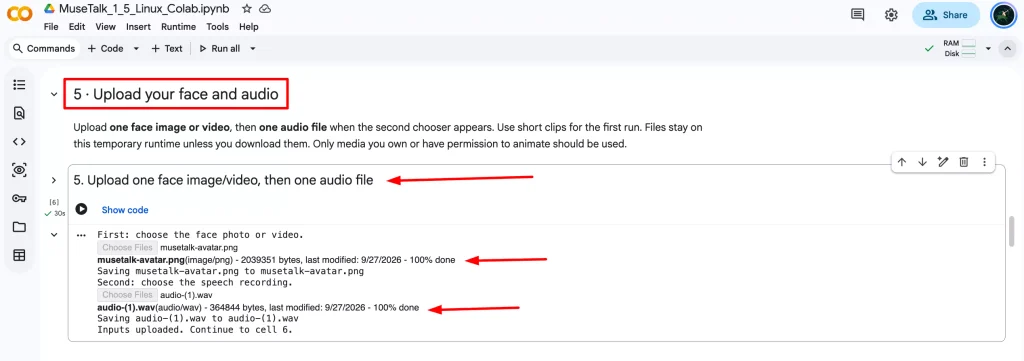
Keep the face front-facing and visible. A still photo produces a talking portrait with little movement beyond the mouth.
For a video, avoid cuts, blocked faces and frames where the person leaves the shot.
Cell 6: Prepare the Media
| Setting | Starting value | Purpose |
|---|---|---|
MAX_SECONDS | 10 | Processes up to the first ten seconds of audio; accepts 1–60 seconds. |
MAX_DIMENSION | 512 | Keeps the longest frame dimension within 512 pixels; 720 is also available. |
BATCH_SIZE | 2 | Controls how many frames are processed together; use 1 if GPU memory runs out. |
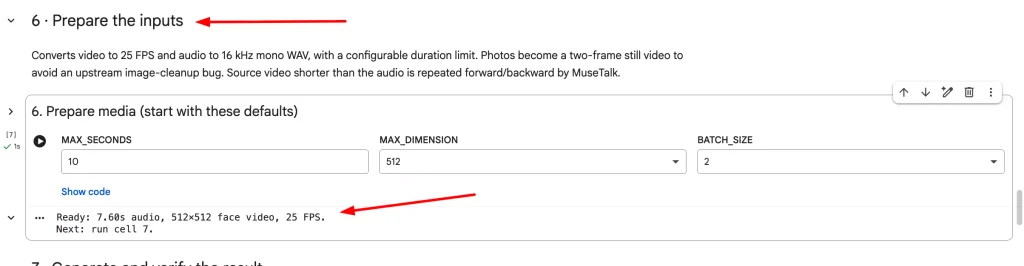
The notebook converts video to 25 FPS and audio to 16 kHz mono WAV. A photo is converted to a short still video before processing.
MuseTalk repeats a shorter source video forward and backward when the audio runs longer.
Start with ten seconds or less before trying longer recordings.
Cell 7: Generate the Lip-Synced Video
This cell runs MuseTalk 1.5 with explicit model paths and FP16 enabled. Each attempt uses a new results folder.
The notebook checks that the MP4 exists, includes video and audio, has the expected duration, and can be decoded.
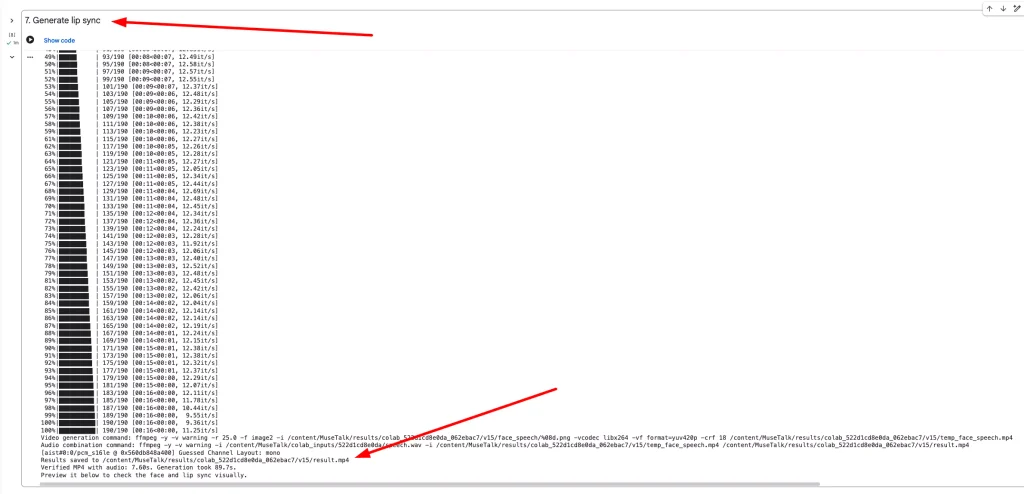
Our test reported Verified MP4 with audio: 7.60s. Generation took 89.7s. A finished command alone is not treated as proof of success: the output checks must also pass.
Cell 8: Preview and Download the MP4
Play the result inside the notebook and check the mouth movement, face crop and audio. Cell 8 also starts the MP4 download. Save the file before the Colab runtime disconnects.
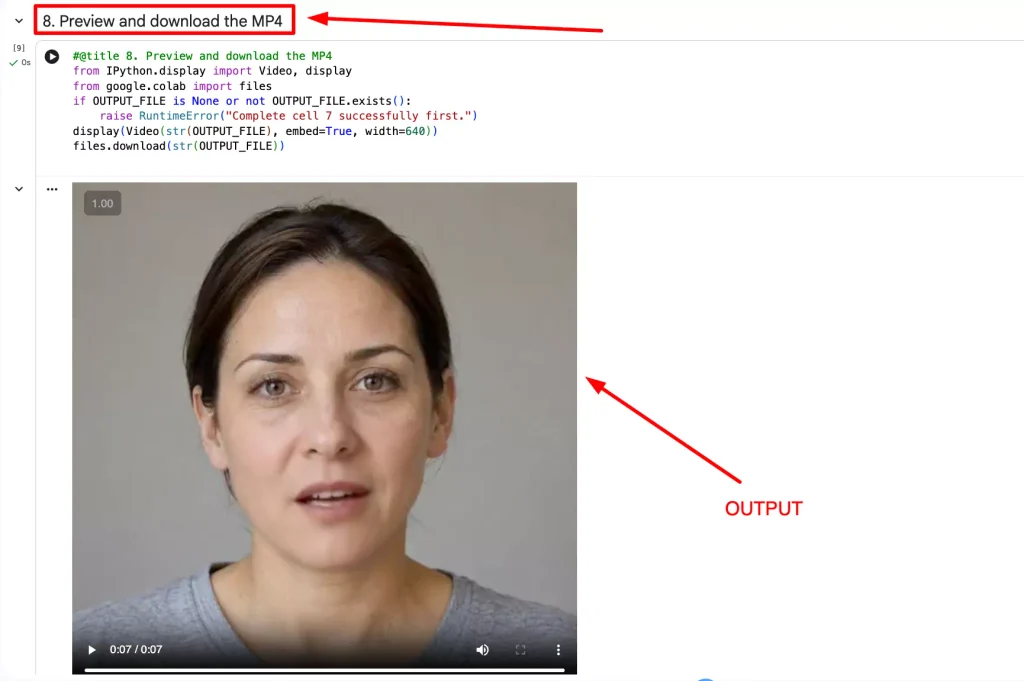
To create another clip in the same runtime, rerun cells 5–8. The installed environment and model files can be reused while that runtime remains available. A new runtime needs setup again.
Linux Fixes Included in This Notebook
- Python compatibility: MuseTalk runs under Python 3.10.18 without replacing Colab’s notebook Python.
- Chumpy installation: pip and its build prerequisites are installed first, followed by Chumpy with
--no-build-isolation. - MMCV compatibility: a prebuilt Linux wheel matches the selected Python, PyTorch and CUDA versions.
- DWPose dependencies: MMDetection 3.1.0 is included for the CSPNeXt model configuration.
- Hugging Face compatibility: Hub stays at 0.30.2; the notebook downloads files directly without running a script that upgrades it.
- FFmpeg and paths: FFmpeg is installed through Linux packages, and input paths are prepared automatically.
- Incomplete downloads: model files are checked before inference.
- Missing output: the notebook rejects a run that ends without a valid MP4.
Common Errors and What to Do?
| Problem | Action |
|---|---|
| No NVIDIA GPU detected | Select a T4 GPU runtime and rerun cell 1. Colab may have no GPU available at that time. |
| Chumpy reports a missing pip module | Rerun cell 2, which installs the build tools and applies the build-isolation fix. |
mmcv._ext error or a package version assertion | Rerun cells 2–3. If packages were changed manually, start a fresh runtime and run the notebook from cell 1. |
mmdet or CSPNeXt missing | Complete cell 2, then rerun cells 3–4. |
| Model download fails or times out | Rerun cell 4 and let the file checks finish. |
| CUDA out of memory | Set batch size to 1 and maximum dimension to 512 in cell 6. Shorten the clip, then rerun cells 6–8. |
| Runtime RAM is exhausted | Use a shorter clip. MuseTalk stores decoded frames in memory; batch size alone does not solve system RAM pressure. |
| No face detected or a division-by-zero error | Choose a clear face that remains visible in every frame, then rerun cells 5–8. |
| The command ends but no MP4 is available | Read the generation log. The notebook checks the actual result instead of trusting the command’s exit status. |
| The runtime disconnects | Reconnect and check for your files. If the runtime was replaced, rerun setup. Save each completed MP4 to your computer. |
For help with a failed run, enable DOWNLOAD_DIAGNOSTICS in the optional final cell. It downloads setup logs, generation logs, package versions and model metadata. The archive does not include uploaded media or generated videos.
Colab Limits and Other Ways to Run MuseTalk
GPU availability and session length depend on your Colab account and current allocation. The test confirms this notebook worked on the recorded T4 environment; it does not guarantee a GPU or the same processing time for every session.
Runtime storage is temporary, so download completed videos promptly.
Follow Colab’s usage rules, including its restrictions on deepfakes.
This notebook runs through Colab’s cells and does not launch a public Gradio service.
For regular use on your own NVIDIA machine, follow the Linux installation guide or the Windows installation guide.
For a quick browser trial, use the MuseTalk playground.
Frequently Asked Questions
Do I need an NVIDIA GPU in my own computer?
No. The model runs on the GPU assigned to the Colab runtime. Your computer handles the browser, uploads and downloads.
Does this notebook use MuseTalk 1.5?
Yes. It downloads the v1.5 model files and runs inference with the v15 option and matching model paths.
Can I upload a photo instead of a video?
Yes. Upload a PNG, JPG, JPEG or WebP image in cell 5. The notebook prepares it for the same generation process.
Do I need Google Drive or a Hugging Face token?
No. The notebook uses public model downloads, Colab’s upload prompts and a direct MP4 download.
Can I reuse the setup for another clip?
Yes. In the same active runtime, rerun cells 5–8 with the new files. If Colab gives you a new runtime, run cells 1–8 again.
Current status and what to do if Colab fails
On 4 October 2026, the public notebook ZIP matched the supplied executed notebook byte for byte. Its saved outputs record FFmpeg installation, the CUDA and model checks, and successful generation of a 7.60-second MP4 with audio. The published result video was downloaded and successfully decoded during this review. This confirms the saved evidence and downloadable assets, not current GPU allocation or a new successful inference session.
Run cells 1–8 in order in a fresh GPU runtime. If cell 1 reports no GPU, check the selected runtime and current Colab availability. If setup or model downloads fail, keep the first error and the failing cell’s log. Retry a transient download once. If you changed package versions, start a fresh runtime and rerun the pinned setup. If FFmpeg is missing, rerun setup and follow the correct shell and FFmpeg path checks. Do not continue to generation until the CUDA, compiled-extension and model checks pass.
For an out-of-memory error, shorten the clip, use 512-pixel preparation and batch size 1. If Colab still fails or cannot provide a GPU, download your inputs and logs, then use a local NVIDIA GPU or a cloud Linux GPU with the MuseTalk installation guide. The ComfyUI workflow guide is another route for a compatible GPU environment. A fallback requires its own setup and a short output test; it does not guarantee that the same error disappears.
Before accepting a result, confirm the MP4 exists, contains both video and audio streams, decodes successfully, and plays with audible speech and sensible lip movement. The FFmpeg guide provides stream and decode commands. Save your output before the runtime disconnects. Colab availability and runtime limits vary; see Google’s Colab FAQ.