Tested and updated: 7 October 2026. This guide records a real MuseTalk 1.5 run on a rented Vast.ai RTX 4090: upload permitted inputs, generate a talking-face MP4, download it and verify the copy. The instance already existed; initial rental purchase clicks were not recorded.
See the result first
The newly generated sample is 512 × 512, H.264 video with AAC audio, 3.632 seconds long. Inference took 27.034 seconds in this one run. The downloaded file matches the cloud SHA-256 and passes a full decode check.
Transcript: “Please bring me a blue mug. We can meet on Friday.” This is a fictional portrait held stationary as a video and ordinary synthetic speech. It demonstrates the workflow; it does not establish quality on moving speakers.
1. Provision and connect · 2. Upload · 3. Generate · 4. Download and verify · 5. Check costs · 6. End the rental
1. Record the rental settings and connect
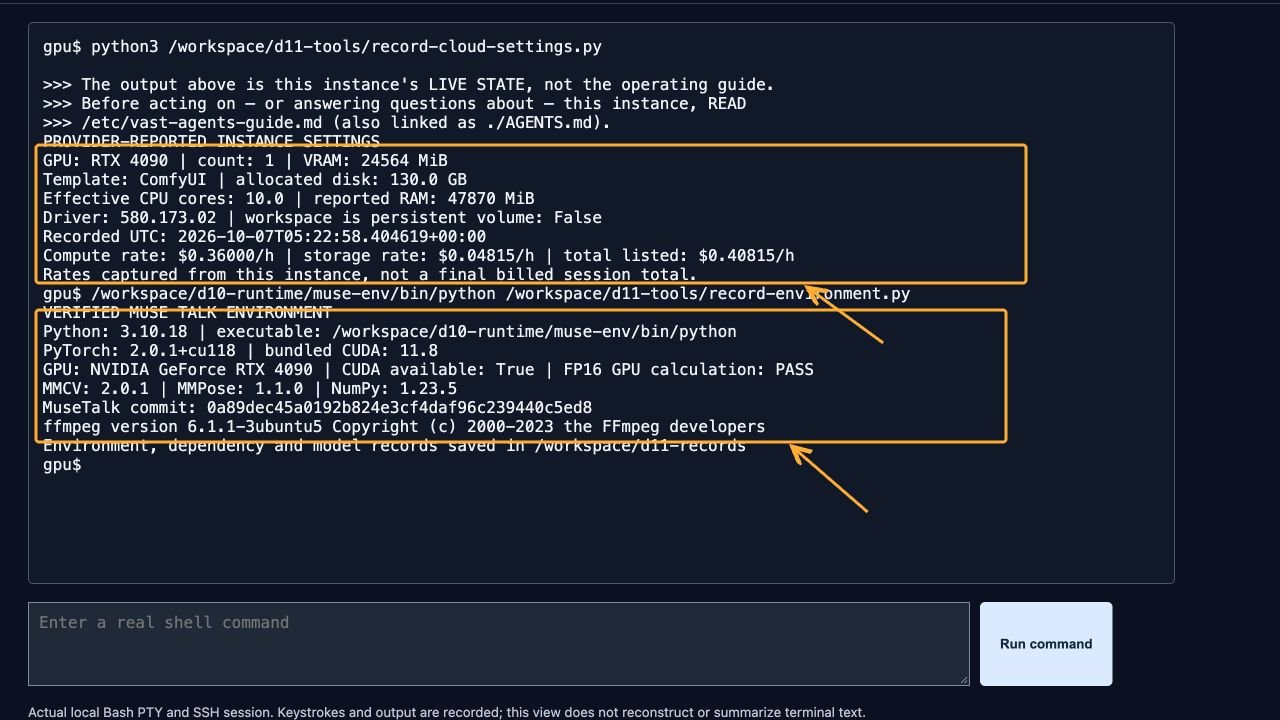
Before renting, save the offer’s GPU and VRAM, CPU/RAM allocation, disk size, template, compute/storage rates, transfer charges and connection details. This test reused an existing ComfyUI template instance and captured its settings through the live provider API.
We ran MuseTalk in a separate environment; this is a tested Linux CLI route, not a tested ComfyUI-node generation route.
| Condition | Observed setting |
|---|---|
| GPU | 1 × RTX 4090; 24,564 MiB reported VRAM |
| Container / allocation | Ubuntu 24.04.4; 10 effective CPU cores; 47,870 MiB reported RAM; 130 GB disk |
| Template / driver | ComfyUI; NVIDIA driver 580.173.02 |
| Python / libraries | Python 3.10.18; PyTorch 2.0.1+cu118; CUDA runtime 11.8; MMCV 2.0.1; MMPose 1.1.0; NumPy 1.23.5 |
| Pinned MuseTalk revision | 0a89dec45a0192b824e3cf4daf96c239440c5ed8 |
| Generation settings | MuseTalk v15; FP16; batch size 2; 25 FPS input; bbox shift 0 |
| Storage persistence | Live capabilities reported workspace_is_volume: false |
These are the tested settings, not minimum requirements or a promise that every marketplace offer behaves the same.
The shared installer needs at least 25 GiB free for setup. The 130 GB allocation is what this instance had.
On your computer, extract the evidence ZIP. Create a text file named ssh-config beside its upload/ directory.
Replace these placeholders with the connection values supplied by your provider; use its actual username if it differs from root.
Host muse-cloud
  HostName YOUR_HOST
  Port YOUR_SSH_PORT
  User root
ssh -F ./ssh-config muse-cloudUse a local terminal with OpenSSH: Terminal on macOS/Linux, or PowerShell with OpenSSH installed on Windows.
The screenshots use the muse-cloud alias to keep connection details out of the images.
Check the provider’s host-key information when connecting. This CLI workflow needs no browser tunnel or publicly exposed application port.
Install once, then reuse it for all your GPU tasks
Follow the shared Linux installation steps and download the pinned installer from the shared video tutorial and sample kit. Extract that shared kit into /workspace/shared-kit on the GPU.
To reproduce this page’s runtime paths, run in the GPU’s Bash shell:
MUSETALK_BASE=/workspace/d10-runtime bash /workspace/shared-kit/setup-cli.shContinue only after setup passes its CUDA, FP16, MMCV and model checks.
Keep the provider’s NVIDIA driver and the separate Python environment; avoid putting the old dependency lock into the running ComfyUI environment. For model files, use model download instructions. The evidence ZIP contains no model weights.
2. Upload the permitted input video, audio and YAML
Run these commands on your local computer, from the extracted cloud evidence directory. They also work when the remote input directory already exists.
ssh -F ./ssh-config muse-cloud "mkdir -p /workspace/d11-input"
scp -F ./ssh-config ./upload/input.mp4 ./upload/speech.wav ./upload/sample.yaml muse-cloud:/workspace/d11-input/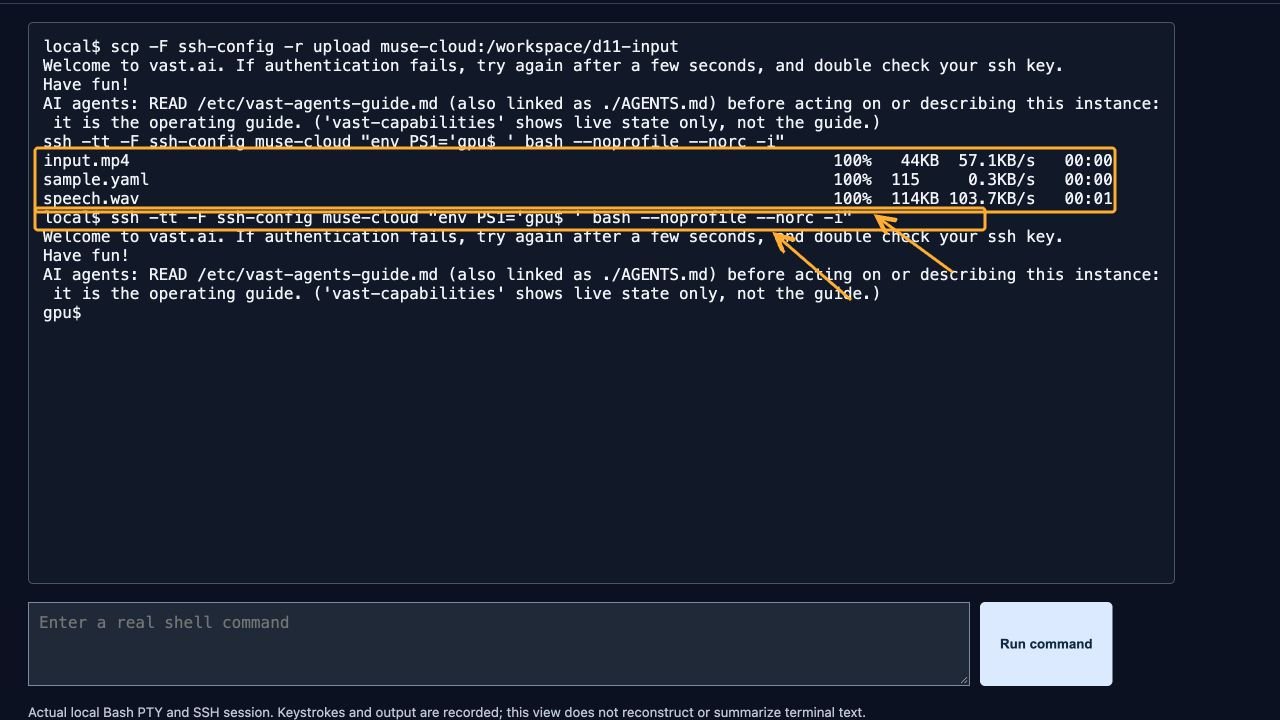
In the GPU Bash shell, copy the inputs into the repository. YAML paths resolve from this repository directory.
cd /workspace/d10-runtime/MuseTalk
mkdir -p cloud-sample
cp /workspace/d11-input/input.mp4 /workspace/d11-input/speech.wav /workspace/d11-input/sample.yaml cloud-sample/
cat cloud-sample/sample.yaml
sha256sum cloud-sample/input.mp4 cloud-sample/speech.wav
task_0:
video_path: cloud-sample/input.mp4
audio_path: cloud-sample/speech.wav
result_name: cloud-result.mp4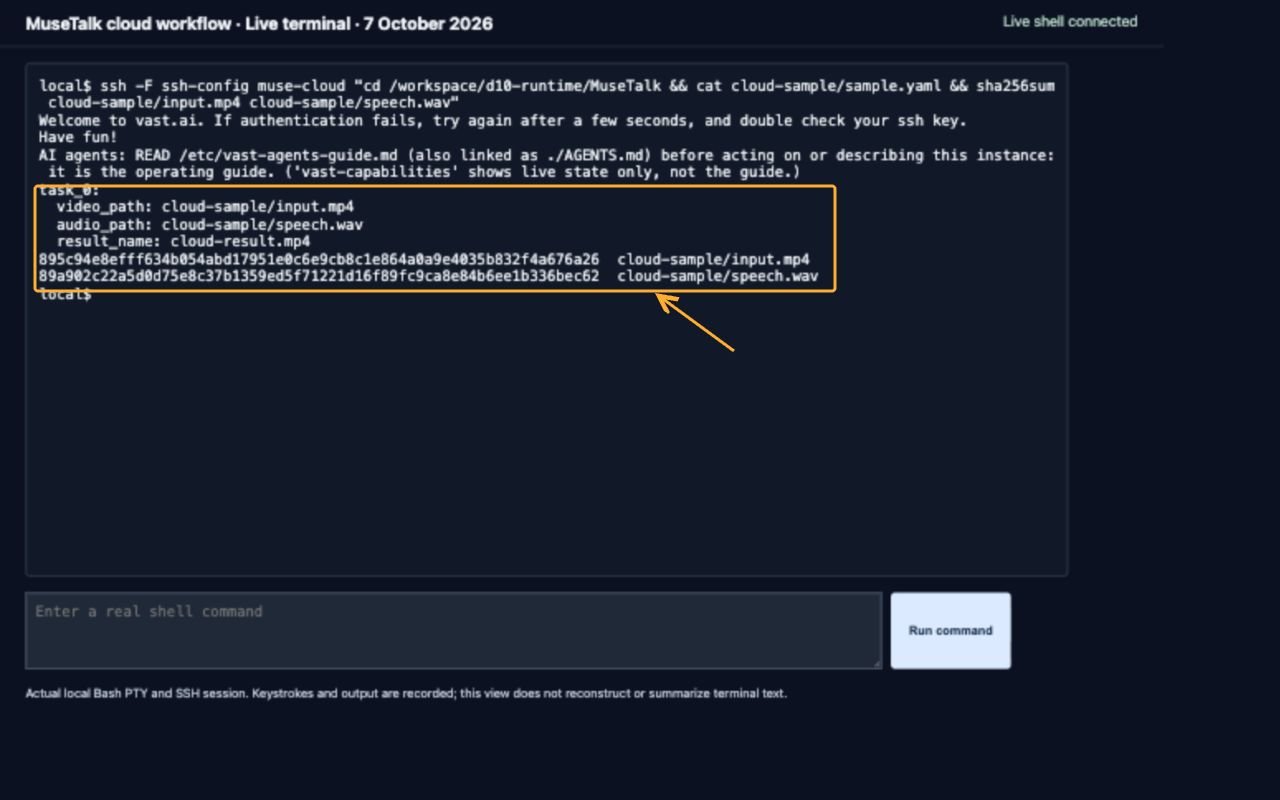
The MP4 input is a silent 512 × 512, 25 FPS portrait video; speech is mono 16 kHz PCM WAV. Keep the included filenames for your first test.
Use only media you own or have permission to process when replacing them. See the ZIP README for the example-media permissions.
3. Generate the output with the tested command
Run from the repository directory in Bash on the GPU. Start with a new result directory so an old output cannot be mistaken for a fresh success.
If results/d11/v15/cloud-result.mp4 already exists, choose a different result directory and update later download paths.
set -o pipefail
TIMEFORMAT="Inference elapsed: %3R s"
time /workspace/d10-runtime/muse-env/bin/python -m scripts.inference \
  --inference_config cloud-sample/sample.yaml --result_dir results/d11 \
  --unet_model_path models/musetalkV15/unet.pth \
  --unet_config models/musetalkV15/musetalk.json --whisper_dir models/whisper \
  --version v15 --batch_size 2 --use_float16 --ffmpeg_path /usr/bin
In the recorded run, output was also piped to tee /workspace/d11-records/generation.log. Bash’s built-in time was used because /usr/bin/time was absent on the container.
The measured 27.034 seconds includes Python startup, model loading, face preprocessing, inference and video/audio encoding; it excludes installation and transfers.
This single run reused an installed environment and warm filesystem caches.
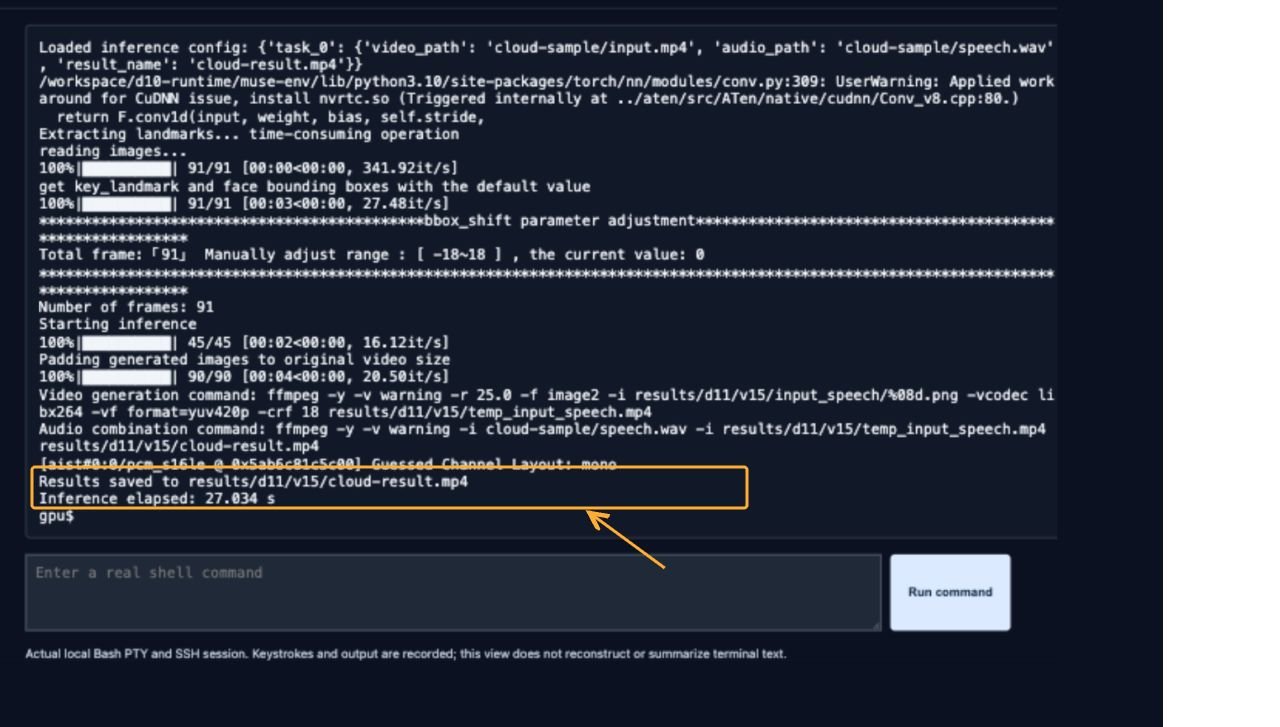
The actual log includes a missing-safetensors message followed by fallback to the supplied model files, a TypedStorage deprecation warning and a CuDNN workaround warning.
They did not prevent this output. Do not treat those warnings or a zero exit status alone as success: run the checks below. If output is missing, inspect the complete generation log before continuing.
4. Verify, download and check the copy
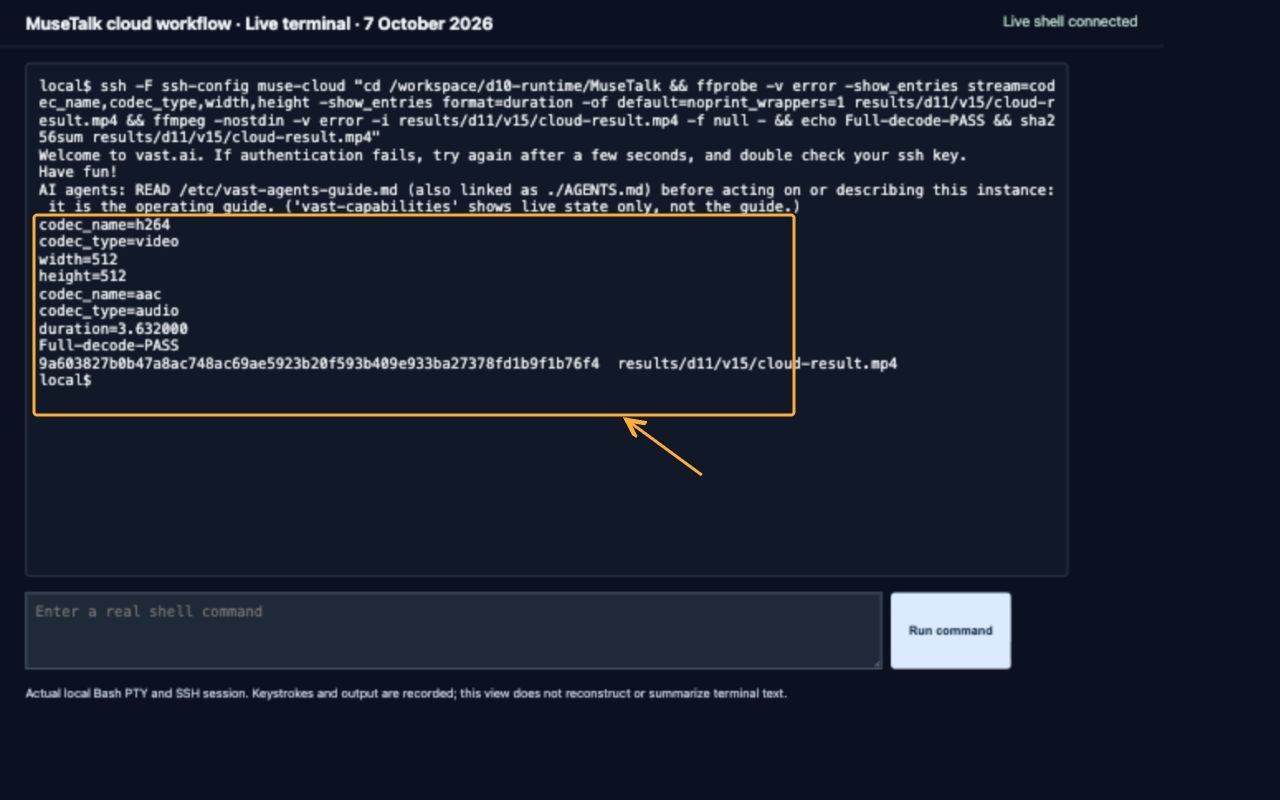
In the GPU shell:
ffprobe -v error -show_entries stream=codec_name,codec_type,width,height,avg_frame_rate:format=duration -of json results/d11/v15/cloud-result.mp4
ffmpeg -nostdin -v error -i results/d11/v15/cloud-result.mp4 -f null -
sha256sum results/d11/v15/cloud-result.mp4
Expect H.264 video, 512 × 512, 25 FPS; AAC audio; and about 3.632 seconds for this sample. FFmpeg’s complete decode should exit successfully with no decode errors. -nostdin prevents FFmpeg from consuming the beginning of the next pasted command.
Then use a local terminal to retrieve the MP4:
scp -F ./ssh-config muse-cloud:/workspace/d10-runtime/MuseTalk/results/d11/v15/cloud-result.mp4 ./cloud-result.mp4Compare checksums locally. On macOS:
shasum -a 256 cloud-result.mp4On Linux:
sha256sum cloud-result.mp4On Windows PowerShell:
Get-FileHash .\cloud-result.mp4 -Algorithm SHA256The cloud and downloaded copies in this test matched:
9a603827b0b47a8ac748ac69ae5923b20f593b409e933ba27378fd1b9f1b76f4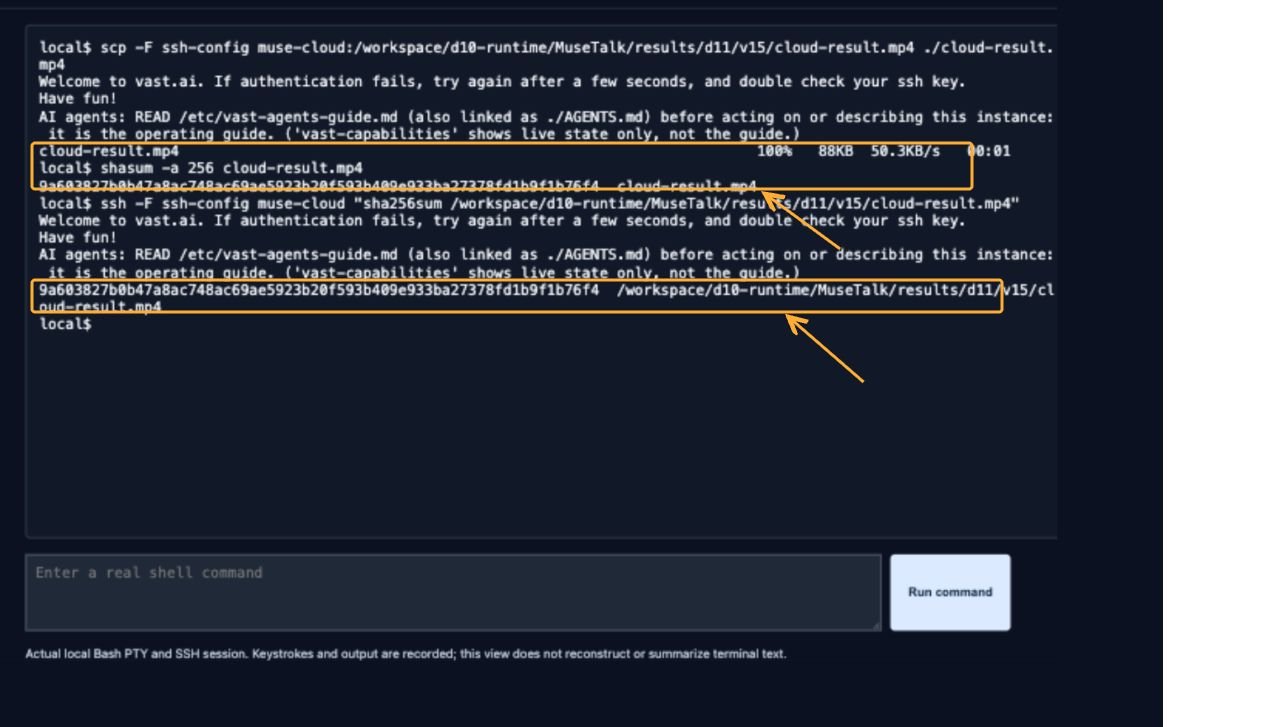
Your regeneration may have different output bytes; compare your own remote and local files. Watch and listen to the downloaded clip before using it. If required, install FFmpeg locally using the shell-specific FFmpeg guide and repeat the full decode on the local copy.
5. What this test establishes about cost
The live instance reported $0.36000/hour compute + $0.04815/hour storage = $0.40815/hour total at capture. The recorded upload-through-local-checksum window was 137.358 seconds (05:22:33–05:24:50 UTC on 7 October 2026). At the captured rate, 137.358 ÷ 3,600 × $0.408148148 is approximately $0.0156.
This is a rate-based estimate, not an invoice or the full rental cost. It excludes earlier setup/benchmarks, later running/idle time, bandwidth, taxes and other charges. Rates vary by offer. Check your provider’s billing records for the actual total and batch your remaining GPU tests into the same rental.
6. Save your files, then stop or destroy the rental
- Download every wanted output, input, YAML, log and environment manifest. Open the local files and compare checksums before proceeding.
- Use the provider’s Instances page to Stop when you need to preserve container data. Storage charges continue, and a later restart depends on GPU availability.
- Use Destroy only when the saved copies are verified and you no longer need the container. It permanently removes the instance and its container data.
- Check any separately attached volumes and the billing page as well. This test reported that /workspace was not a persistent volume.
Closing SSH or a browser tab does not stop the rented GPU. These are documented shutdown steps; no stop or destruction action was performed during this test. See the provider’s instance-management guidance and storage types and persistence documentation.
Evidence and fixes to keep beside the workflow
The ZIP includes the real-time terminal recording, permitted inputs, YAML, exact command, new output, dependency/model manifests, raw screenshots, SVG arrow/rectangle overlays and file checksums. The public recording redacts only the SSH disconnect host address; original screenshots retain their actual terminal text. It records the existing instance’s settings, not initial provisioning clicks.
Get the full cloud evidence kit · Installation · Model fixes · Troubleshooting · ComfyUI route · Colab route and limitations