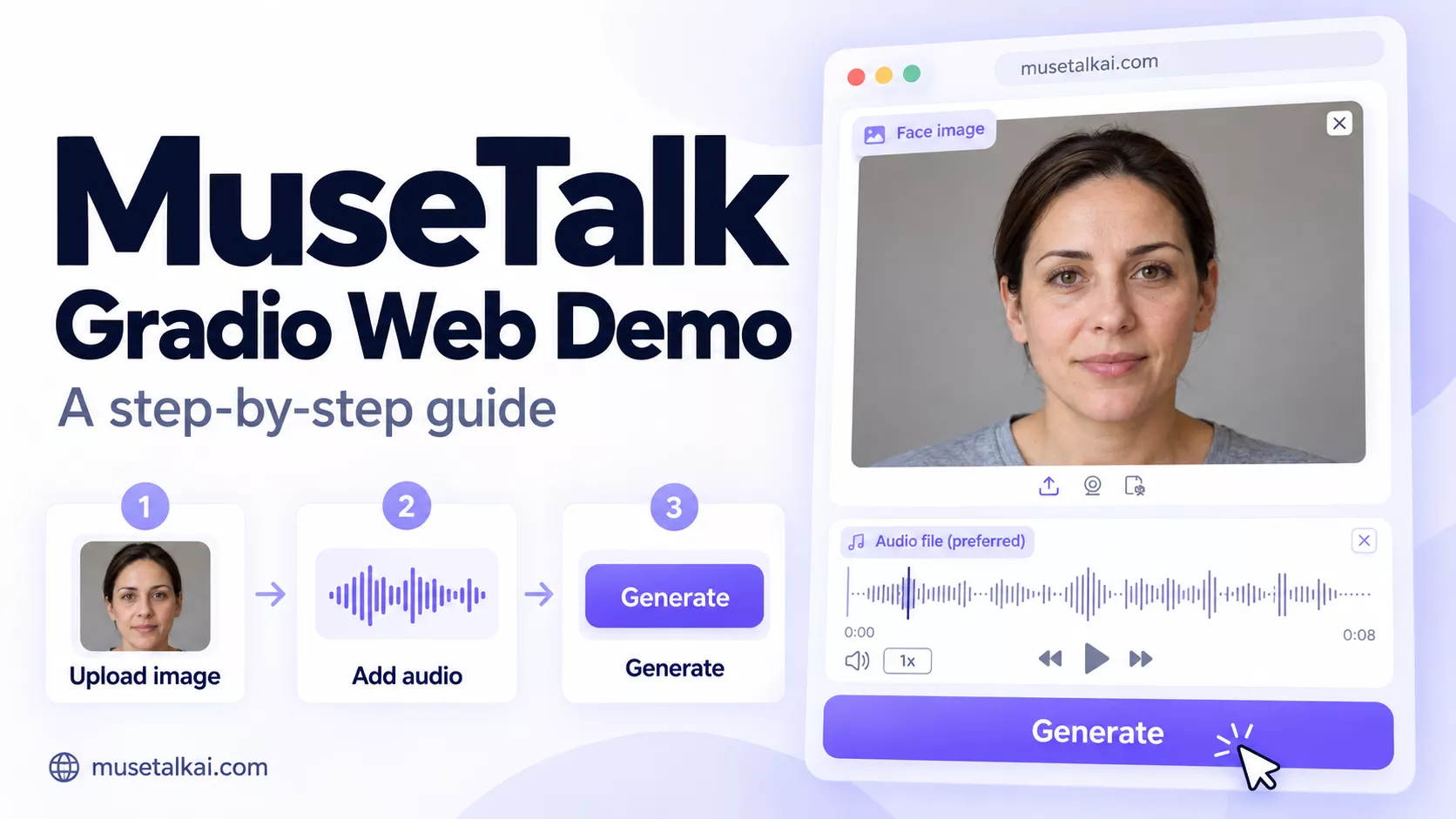
Gradio is the browser interface used by several MuseTalk apps. A hosted demo runs on someone else’s computer. A local app runs on yours. The controls and limits can differ, so first choose which one you are using.
Which MuseTalk link should you use?
- banao-tech’s hosted demo: the third-party app used by this playground. It accepts a face image and speech audio, or a short line of English text.
- The official team’s hosted demo: a separate Hugging Face page. On 29 September 2026, it showed a startup error for missing model files. We could not test generation there.
- The official MuseTalk project: the program and setup instructions for running MuseTalk on your own computer. Its browser controls differ from this playground.
- MuseTalk model downloads: files needed by the program. This page is a download library, not an upload-and-generate demo.
Try it online first
Use our playground or open the banao-tech demo directly. No local installation is needed for that hosted app. Uploaded pictures and audio go to the provider.
How to try the hosted demo
The screenshots below show the banao-tech app.
They illustrate the controls; they are not proof that today’s test produced a video.
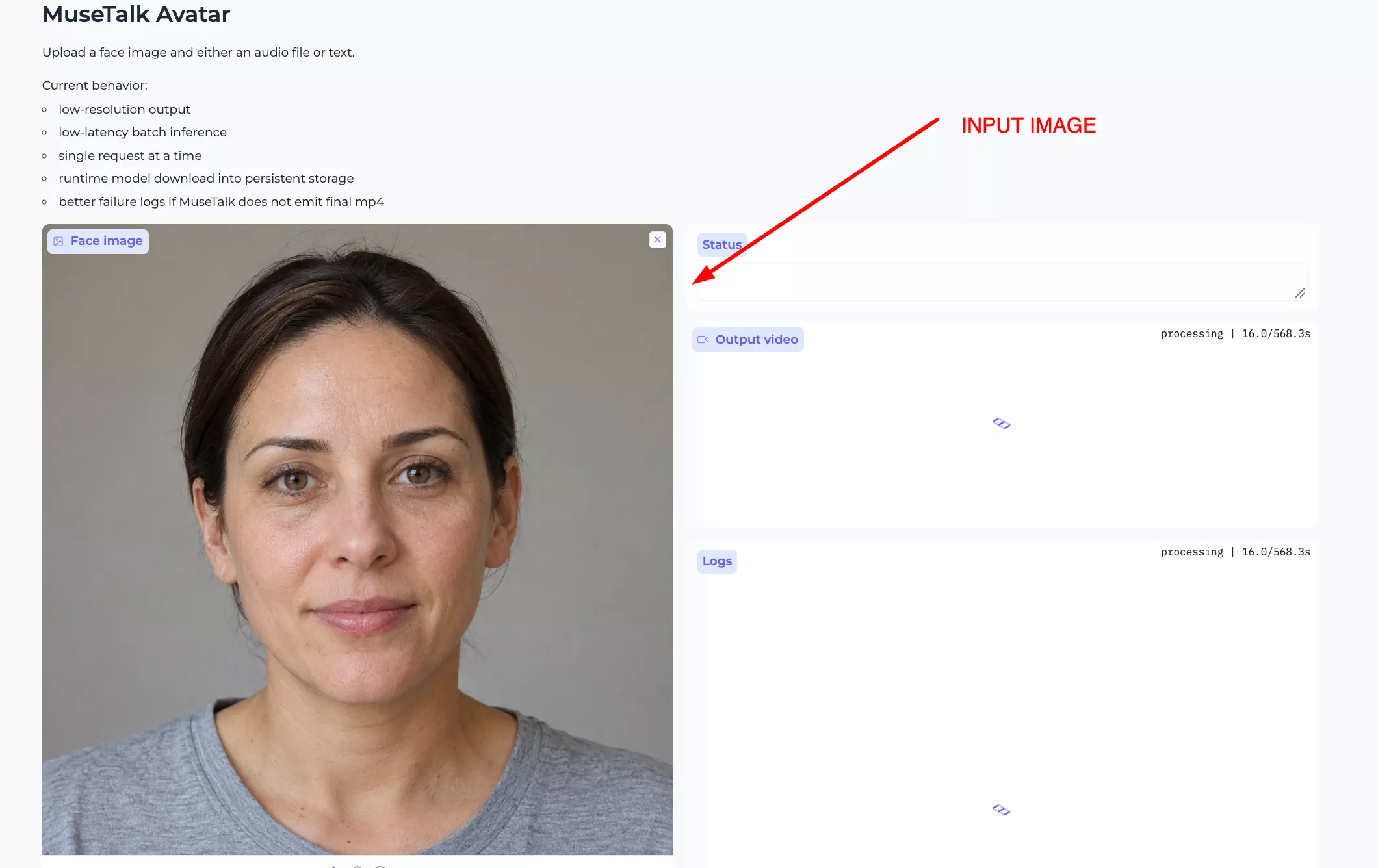
1. Add a face image
Choose Face image and upload one clear portrait. Keep the face facing forward and the mouth visible.
Use a picture you have permission to use.
2. Add speech
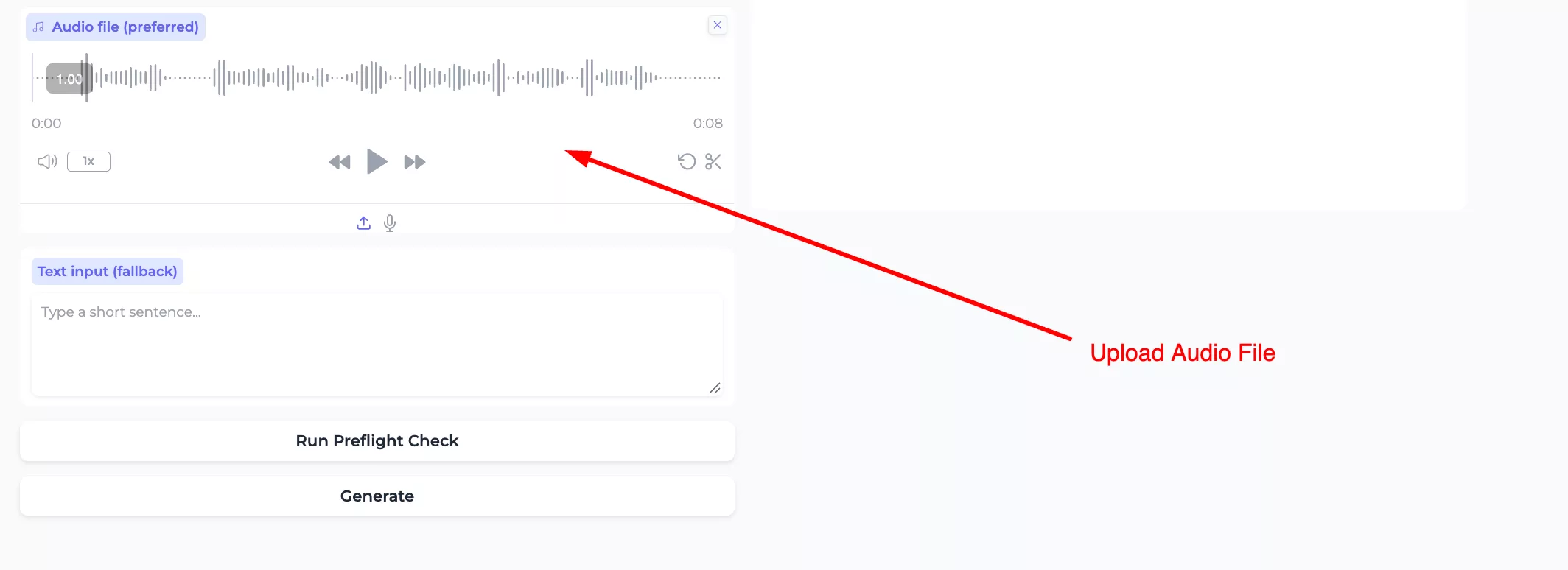
Upload a short recording under Audio file (preferred). Listen to it before continuing.
For a first try, use about five seconds of one person speaking clearly, without music.
Alternatively, leave the audio box empty and enter Hello.
This is a short MuseTalk test. in Text input (fallback). This is an example to try, not a text-to-speech result verified in our test.
3. Check that the demo is ready
Click Run Preflight Check. This means “check the setup.” Read Status and Logs, the box containing setup messages.
A pass checks the program and required files; it does not check your face picture or guarantee a finished video.
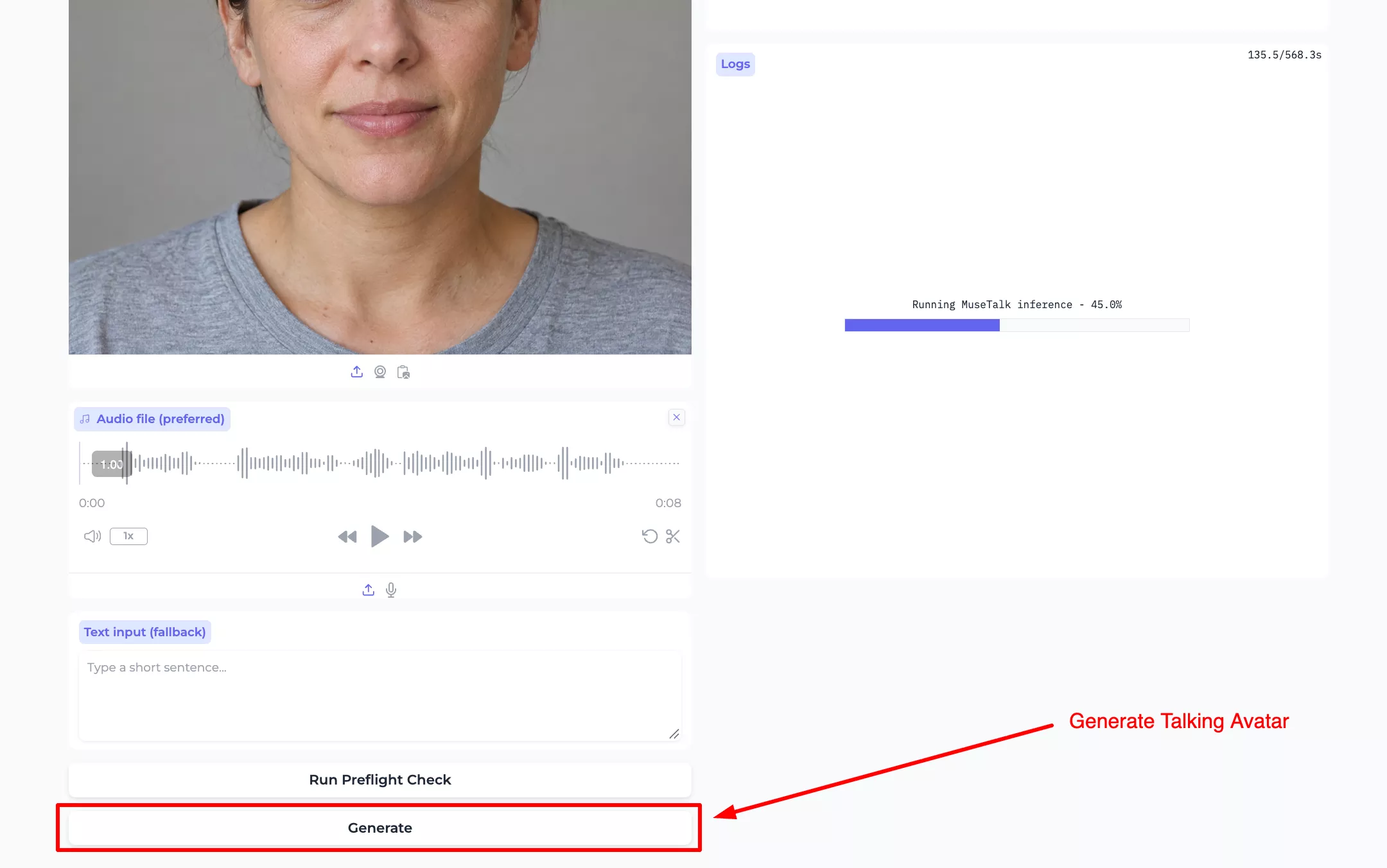
4. Click Generate once
Wait for the request to finish. A message saying Running MuseTalk inference means the app is making the video.
It is still working; a progress bar is not a completed result.
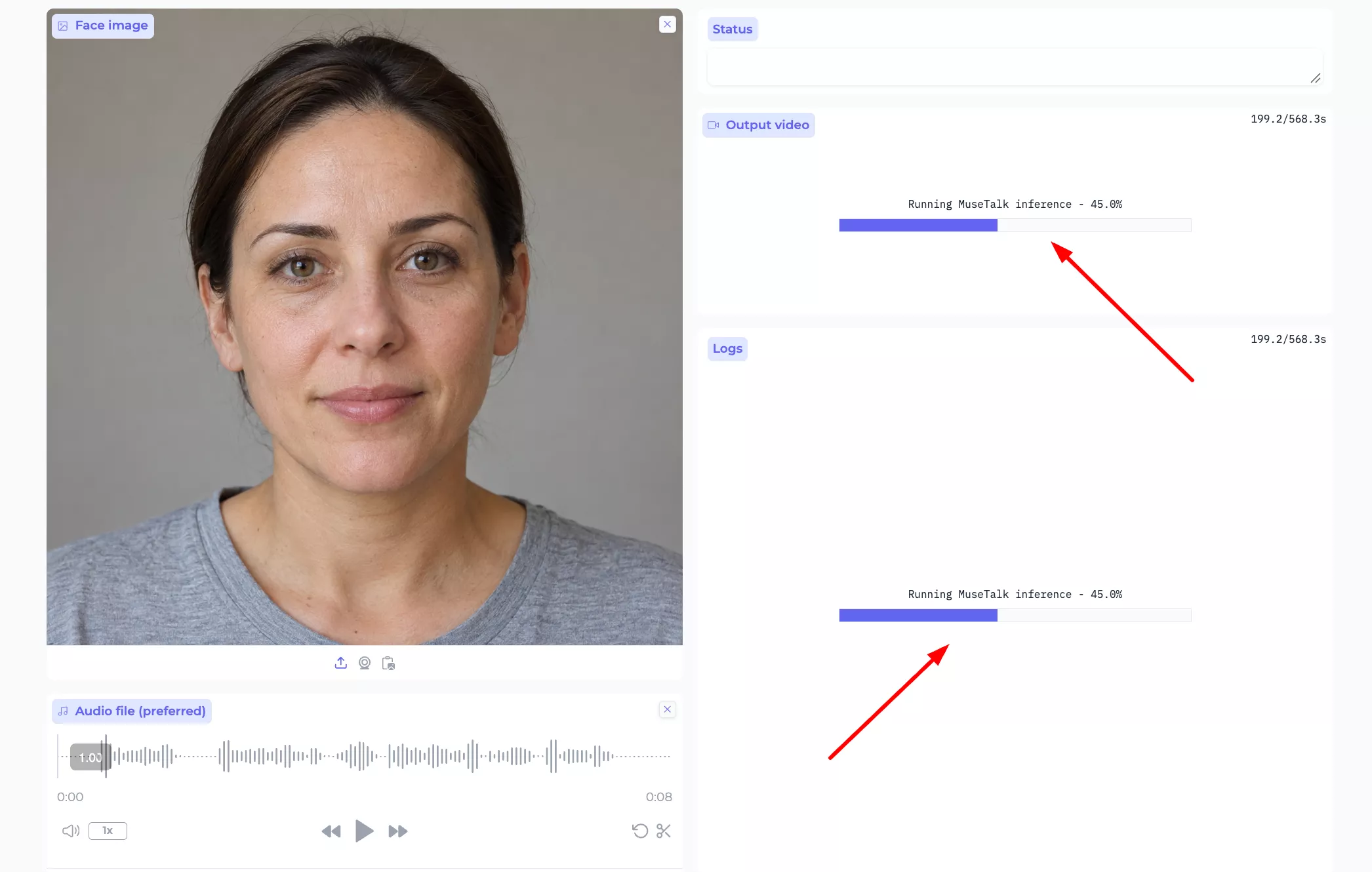
5. Check the finished clip
If a video appears under Output video, play it with sound. Check that it shows your chosen face, uses your audio, and moves the mouth in time with the speech. Download it only after checking it.
If an error appears or there is no playable clip, the test has not passed.
Limits of this hosted demo
- Audio: the app keeps the first 20 seconds. Use a shorter recording if you want the whole sentence included.
- Text: up to 300 characters. The text-to-speech option is set to English. Uploaded audio takes priority if both are supplied.
- Picture: this app accepts a still image. It does not have a source-video upload control.
- Finished video: the published settings target a height of 360 pixels and 15 frames per second. These are the provider’s settings, not a quality measurement from our test.
- Waiting: the app processes one generation at a time. No fixed completion time is promised.
- File size: we did not verify a maximum upload size. A five-second speech recording and one clear portrait are sensible starting inputs.
Run the official app on your computer
Complete the installation guide first. You need MuseTalk, its required model files, and FFmpeg, which reads and writes the audio and video. Windows users can follow the Windows setup guide.
After activating the environment created during setup, open a terminal in your MuseTalk folder and run:
python app.pyIf FFmpeg cannot be found, use the following command and replace the example path with your own FFmpeg bin folder:
python app.py --ffmpeg_path "C:\path\to\ffmpeg\bin"Open the address printed in the terminal. The default is http://127.0.0.1:7860, an address on your own computer. Keep the terminal open while using the app. The optional --use_float16 setting changes how the model calculates results; do not treat switching it off as a guaranteed way to sharpen a video.
The local app has different controls
Its current interface asks for Reference Video and an audio file under Drving Audio (the label is spelled that way in the app). The image and text controls in the screenshots above belong to the hosted app.
- Start with a short video and clear speech. Use about five seconds for your first check. This is a suggested test length, not a stated local limit.
- Keep the first-run defaults: face position 0, Extra Margin 10, Parsing Mode jaw, and Left/Right Cheek Width 90. These settings choose the part of the face that may be redrawn.
- Click “1. Test Inpainting”. This previews the area to be changed on the first frame. It does not generate the whole video.
- Click “2. Generate”. Then play the finished result with sound. The app also saves results under its results folder.
- Adjust only if needed. The control named BBox_shift value, px changes the face area used by the program. Try small changes within the range reported for your input; compare each result before changing more settings.
The hosted demo’s 20-second audio limit and 300-character text limit do not apply to this local interface. Local capacity depends on the installed version, available memory, and input files. The local app does not offer the hosted app’s text-to-speech box.
When something goes wrong
- The hosted demo is blank: open it directly and check the provider page.
- The official hosted demo will not start: it reported missing model files on our check date. That needs a fix by its operator. Use the local setup guide as a separate option.
- The local app will not start: read the terminal’s error and confirm the installation and model downloads are complete.
- The finished clip has no sound: check the source recording, the player volume, and any FFmpeg error shown in the terminal.
- The face looks wrong: try a clearer source with the mouth visible. MuseTalk changes part of the face; lip shape, facial hair and nearby details may change too. No setting guarantees a perfect likeness.
For the dated sample inputs, controls and generation result, see our playground test record. The supplied screenshots show example steps, not a completed output from that test.