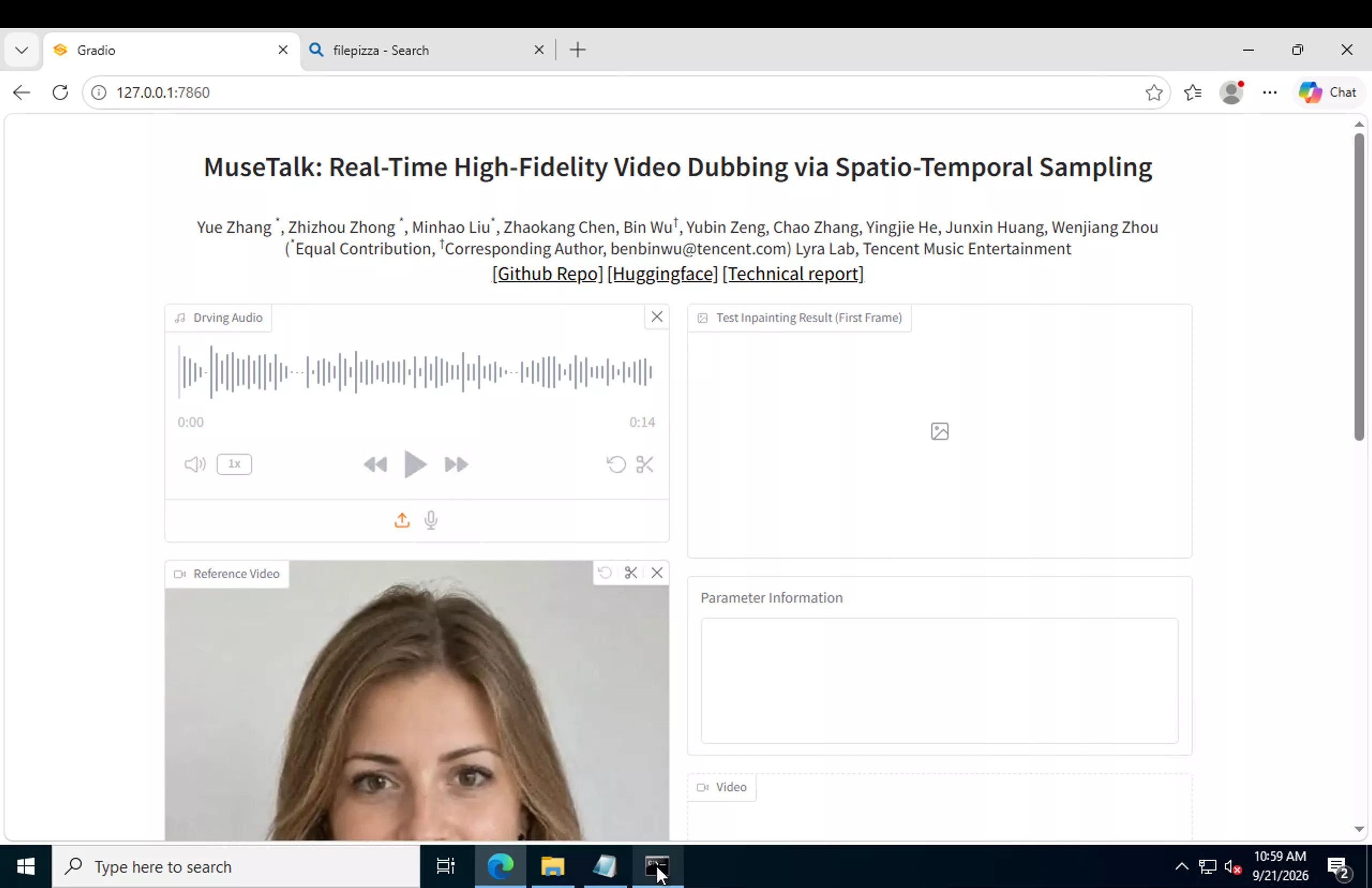
First Windows output: evidence status and next test
Evidence reviewed and page updated: 7 October 2026. The earlier Windows screenshots record installation and Gradio startup. The screenshot dated 21 September 2026 shows loaded inputs with an empty result panel. No generated Windows MP4, exact repository revision, complete environment manifest or full-decode record is currently attached to this page. Native Windows first-output verification is pending; startup alone is not an end-to-end inference pass. This is an unverified route, not a recorded new failure.
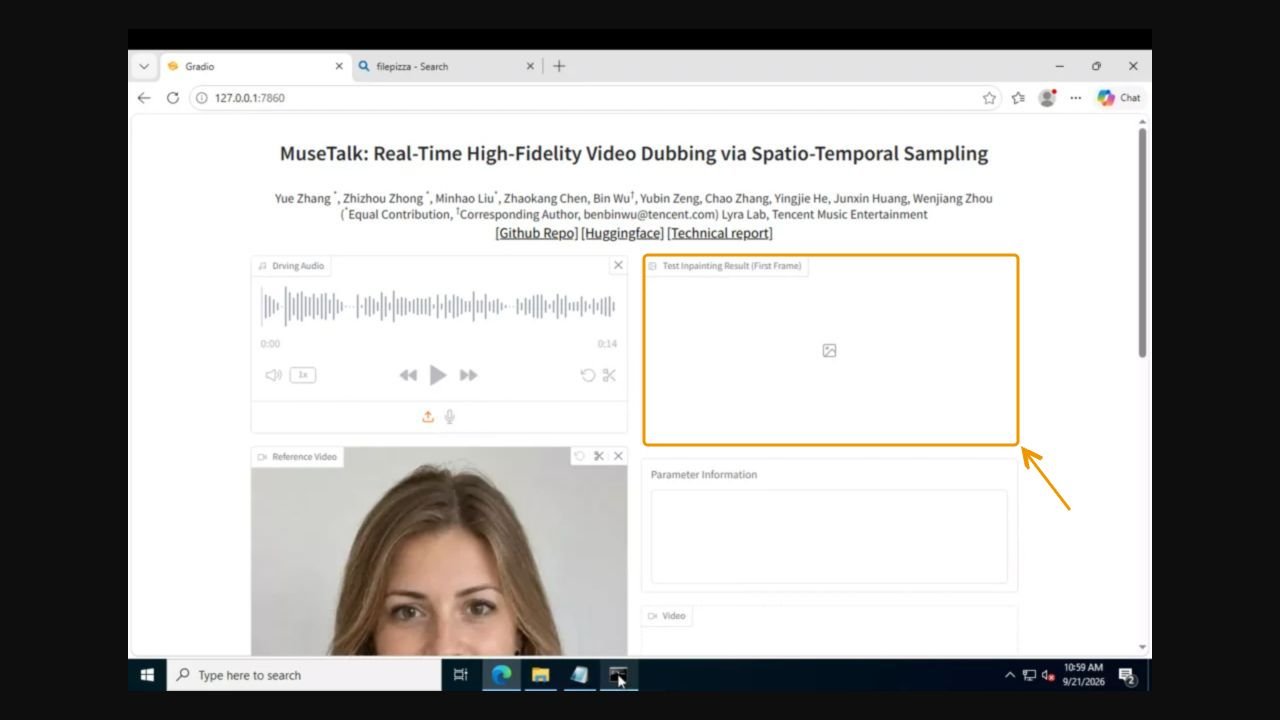
Capture a real first output on the existing Windows machine
Download the Windows first-output capture kit. It includes the shared permitted MP4/WAV and a capture helper. The helper is prepared and syntax checked, but has not yet been executed on Windows. It does not install or change dependencies. Use native Windows with the existing NVIDIA GPU environment; WSL and SSH into a Linux rental must be identified as separate routes.
- Extract the kit. Open Miniconda Prompt and activate the actual MuseTalk environment, for example
conda activate MuseTalk. - Run
capture-first-output.cmdfrom that prompt and enter the full MuseTalk repository folder. The helper records the exact command, Git revision, GPU/driver, Python, library versions and elapsed time. - Keep the resulting
windows-evidence-*.zipwhether generation succeeds or fails. A pass requires a newly created MP4, video and audio streams and a complete FFmpeg decode. - Open and watch/listen to the saved
windows-result.mp4. Capture the real final terminal output and the Gradio result if using the interface. Preserve original screenshots; add only annotations on copies. - If it fails, preserve the entire error and environment, apply one targeted repair at a time and run the capture again. Do not call an import check or a Gradio URL a completed video test.
Repair notes and evidence limits
The original guide below records proposed or previously reported repairs. They have not been retested on native Windows in this 7 October review. Match the actual traceback before applying any change:
- FFmpeg path or command not found: check
where ffmpeg,where ffprobeand the actual folder containing both executables. The guide’sset PATH=...command is for CMD/Miniconda Prompt. Use the shell-specific FFmpeg instructions for other shells. - MMPose/Chumpy import or install errors: retain the complete error and package versions before following the corresponding repair section. After the repair, require a successful import and a new inference output, not just an installer exit code.
- Hugging Face dependency conflict: record the actual installed versions and the constraint printed in the error; do not treat the older pin below as a universal repair for unrelated environments.
- Missing model files: confirm filenames, paths and the model version using the model-file guide. An empty result panel by itself does not identify the cause.
For an independently verified fallback, the Linux video tutorial provides real inputs, output and environment records. Its GPU output is explicitly a Linux result and does not establish native Windows success.
This guide documents the Windows installation steps and earlier recorded Gradio startup on an NVIDIA GPU. Use the first-output evidence checklist below before treating the installation as an end-to-end generation pass.
I tested this installation directly on Windows with Python 3.10, PyTorch 2.0.1 + CUDA 11.8, MuseTalk 1.5, FFmpeg, and an NVIDIA GPU. The test environment successfully reached the MuseTalk Gradio server at:
http://127.0.0.1:7860The official MuseTalk repository recommends Python 3.10 and provides Windows instructions for PyTorch, FFmpeg, model downloads, and the Gradio application.
This guide also includes fixes for the Windows errors I encountered, including:
condasetup- FFmpeg not recognized
- incorrect FFmpeg path
- missing MuseTalk model files
huggingface_hubversion conflictModuleNotFoundError: No module named 'mmpose'- Chumpy installation failure
- CUDA verification
- starting the MuseTalk Gradio interface
MuseTalk Windows Requirements
Before installing MuseTalk, you should have:
- Windows 10, Windows 11, or Windows Server
- 64-bit operating system
- NVIDIA GPU
- Current NVIDIA GPU driver
- Internet connection
- Around 15–20 GB or more of free disk space
- Miniconda
- Git
- FFmpeg
The upstream Gradio documentation reports a Windows test using an RTX 3050 Ti Laptop GPU with 4 GB VRAM. This is upstream evidence, not a hardware minimum measured by this site’s first-output test.
Step 1: Check Your NVIDIA GPU
Open Command Prompt and run:
nvidia-smiYou should see your NVIDIA GPU, driver version, available VRAM, and CUDA driver information.
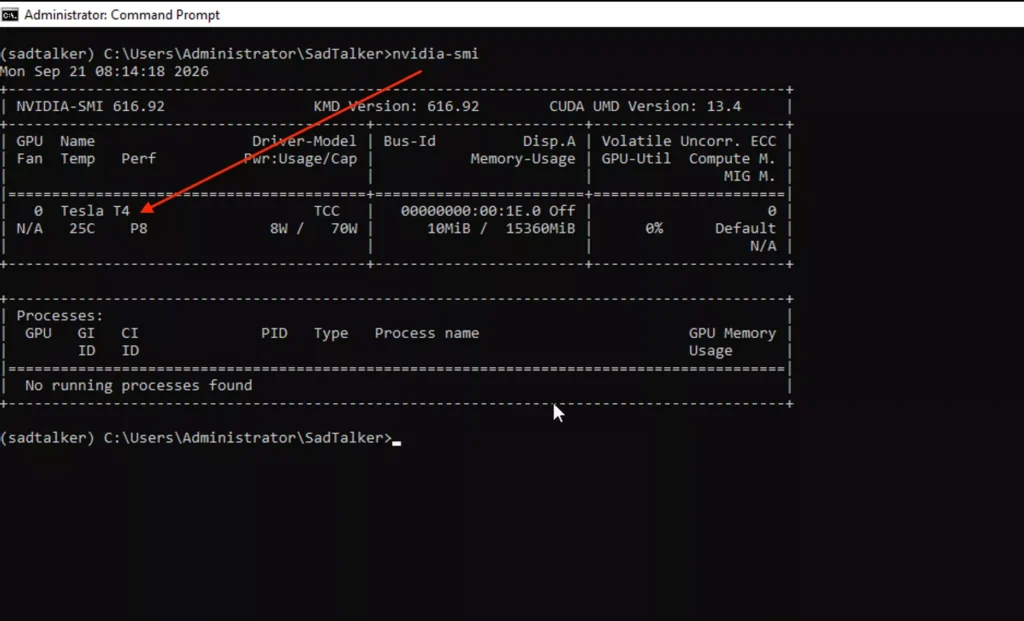
If Windows says:
'nvidia-smi' is not recognizedinstall or update the NVIDIA driver first.
You do not need to install the full CUDA Toolkit just because the nvidia-smi output displays a different CUDA version. We will install the CUDA-enabled PyTorch build required by this MuseTalk setup separately.
Step 2: Install Miniconda on Windows
MuseTalk is much easier to manage inside a separate Conda environment. This prevents its Python packages from conflicting with other projects installed on your computer.
Download the Windows Miniconda installer from the official Conda/Anaconda source and run the .exe installer.
The official Conda documentation recommends running the installer, following the setup wizard, and then opening the Miniconda/Anaconda Command Prompt from the Start menu.
You can normally keep the default installation options.
After Miniconda is installed, open:
Miniconda Promptor:
Anaconda PromptThen check that Conda works:
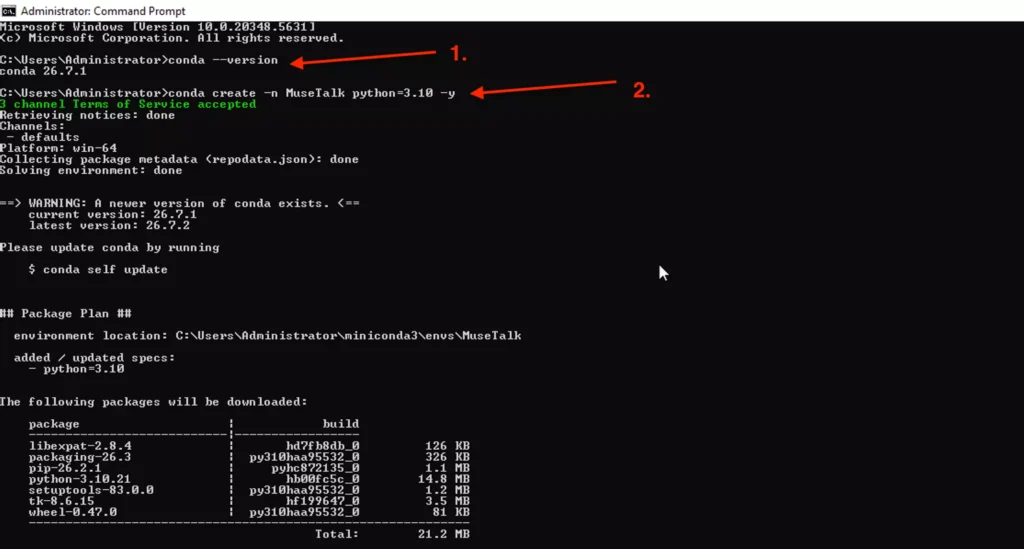
conda --versionFor example, my test returned:
conda 26.7.1If Conda Asks You to Accept the Terms of Service
Recent Miniconda releases can display an Anaconda Terms of Service prompt when you first access the default package channels.
Read the prompt and accept it if you agree to those terms. Anaconda introduced this command-line ToS mechanism for access to its repositories.
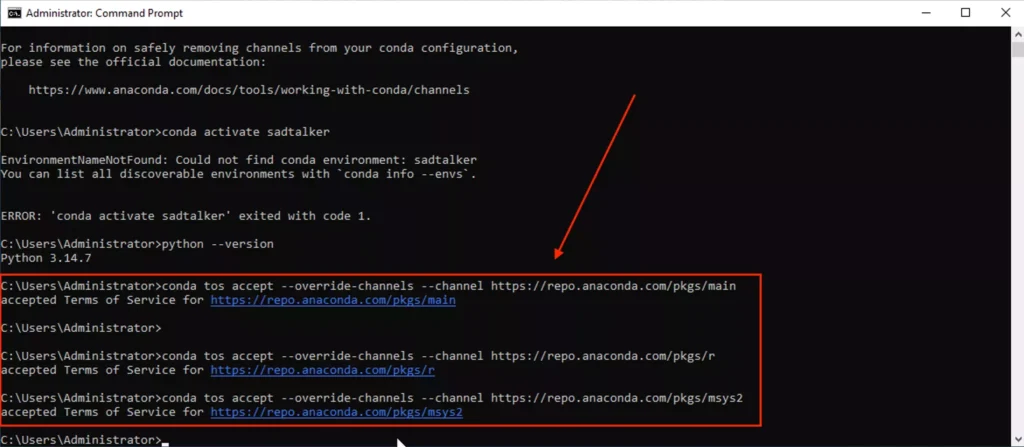
After acceptance, rerun the Conda command.
Step 3: Create a Python 3.10 MuseTalk Environment
Create a separate environment named MuseTalk:
conda create -n MuseTalk python=3.10 -yMuseTalk currently recommends Python 3.10.
In my Windows test, Conda created the environment under:
C:\Users\Administrator\miniconda3\envs\MuseTalkand installed Python 3.10 successfully.
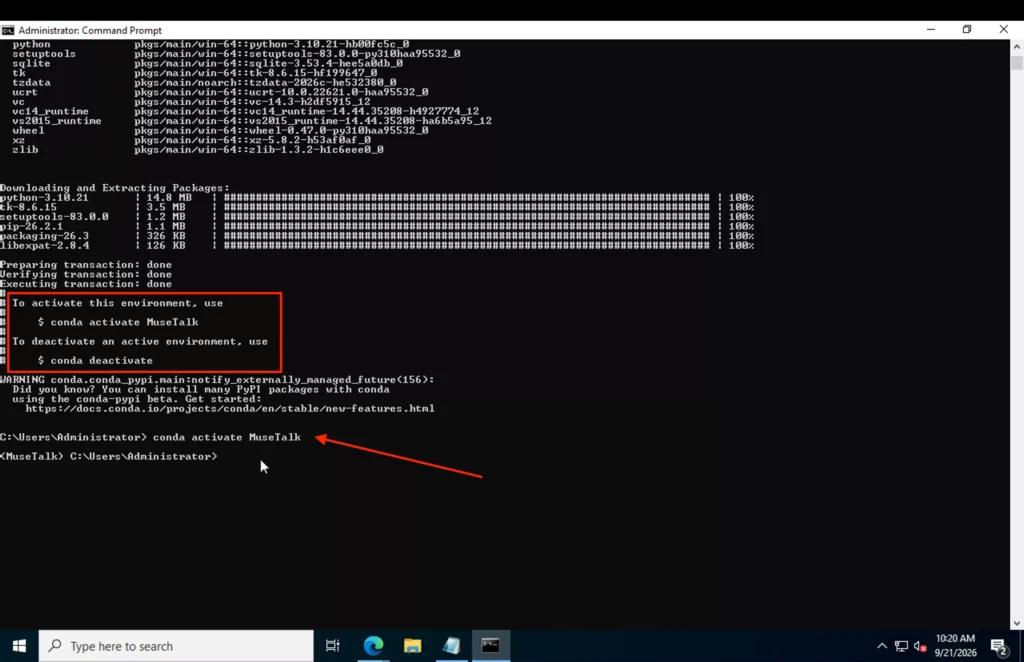
Now activate it:
conda activate MuseTalkYour command prompt should change from something similar to:
(MuseTalk) C:\Users\Administrator>Check Python:
python --version
You should get:
Python 3.10.x
My installation used Python 3.10.21.
Conda Command Not Recognized?
If:
conda --version
returns:
'conda' is not recognized as an internal or external command
the easiest fix is to use Miniconda Prompt instead of a standard Command Prompt.
Close your existing CMD window, search Windows for:
Miniconda Promptand continue the installation there.
Step 4: Install Git
Check whether Git is already installed:
git --versionIf you get a Git version, continue.
If Windows says Git is not recognized, install Git for Windows and reopen your terminal.
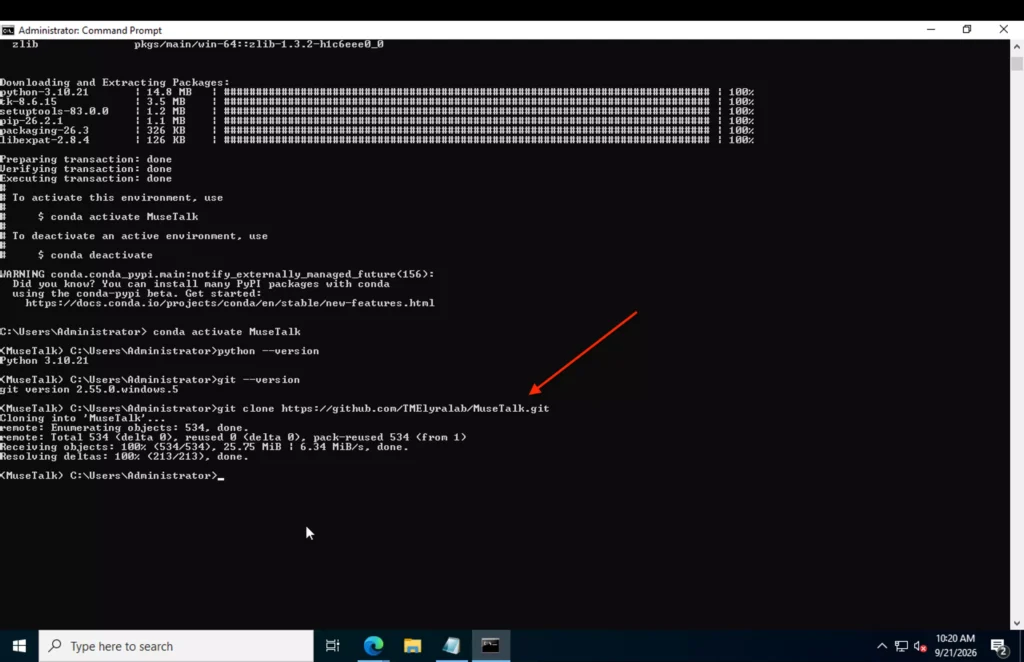
Now clone the official MuseTalk repository:
git clone https://github.com/TMElyralab/MuseTalk.gitThen enter the project directory:
cd MuseTalkYour prompt should now look similar to:
(MuseTalk) C:\Users\Administrator\MuseTalk>
My test successfully cloned the repository and downloaded approximately 25 MB of repository files before model weights were installed separately.
Step 5: Install PyTorch With CUDA Support
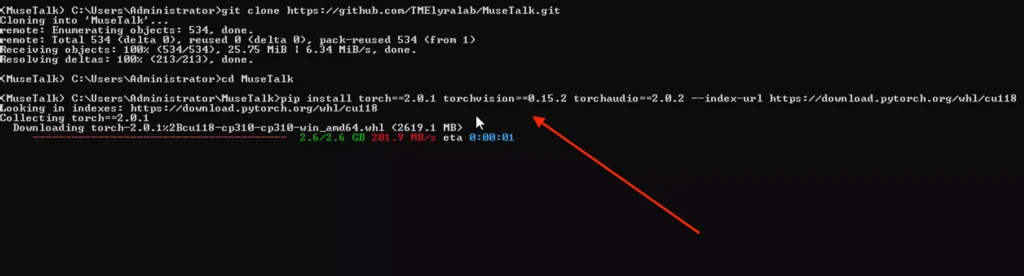
MuseTalk’s current installation instructions specify PyTorch 2.0.1 with torchvision 0.15.2 and torchaudio 2.0.2.
Run:
pip install torch==2.0.1 torchvision==0.15.2 torchaudio==2.0.2 --index-url https://download.pytorch.org/whl/cu118
The Windows CUDA 11.8 PyTorch package is large. In my test, the PyTorch wheel alone was approximately 2.6 GB.
Verify That PyTorch Can See Your GPU
Run:
python -c "import torch; print('Torch:', torch.__version__); print('CUDA available:', torch.cuda.is_available()); print('CUDA:', torch.version.cuda); print('GPU:', torch.cuda.get_device_name(0) if torch.cuda.is_available() else 'CPU')"
You want:
CUDA available: TrueIf it says:
CUDA available: Falsedo not continue with GPU inference yet. Check your NVIDIA driver and PyTorch installation.
Step 6: Install MuseTalk Python Requirements
Make sure you are still inside:
(MuseTalk) C:\Users\Administrator\MuseTalk>
Then run:
pip install -r requirements.txt
The requirements install MuseTalk’s Python libraries including Transformers, Diffusers, Gradio, OpenCV, Librosa, TensorFlow-related dependencies, FFmpeg Python bindings, and other packages.
The tested installation pulled transformers==4.39.2, gradio==5.24.0, diffusers==0.30.2, and other versions specified by the repository.
Step 7: Install OpenMMLab Dependencies
MuseTalk uses OpenMMLab packages for pose and face processing.
First install OpenMIM:
pip install --no-cache-dir -U openmim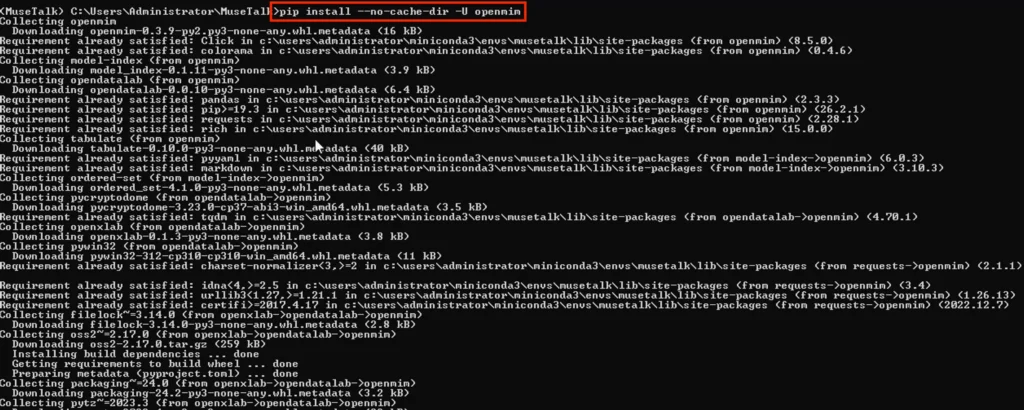
Then run:
mim install mmengineInstall MMCV:
mim install "mmcv==2.0.1"Install MMDetection:
mim install "mmdet==3.1.0"The official MuseTalk instructions currently specify these packages and versions.
Important Windows Fix Before Installing MMPose
On my Windows installation, running:
mim install "mmpose==1.1.0"directly failed while trying to build chumpy.
The error looked like:
ModuleNotFoundError: No module named 'pip'

ERROR: Failed to build 'chumpy' when getting requirements to build wheel
You can avoid this error by installing Chumpy first.
Run:
pip install setuptools wheelThen:
pip install chumpy==0.70 --no-build-isolationMy Windows test successfully built and installed Chumpy using this method.
Now install MMPose:
mim install "mmpose==1.1.0"Verify it:
python -c "import mmpose; print(mmpose.__version__)"You should see:
1.1.0The final tested environment successfully installed mmpose-1.1.0 along with xtcocotools, json-tricks, munkres, and Cython.
Step 8: Install FFmpeg on Windows
FFmpeg is required because MuseTalk needs it for reading, processing, and exporting video/audio.
There are two ways to install FFmpeg.
Option 1: Install FFmpeg With Winget
First check whether Winget is available:
winget --versionThen install FFmpeg:
winget install -e --id Gyan.FFmpegGyan.FFmpeg is available in Microsoft’s Winget package repository.
Close the terminal after installation and open a new one.
Then test:
ffmpeg -versionIf FFmpeg information appears, you can continue.
If:
'ffmpeg' is not recognized as an internal or external commanduse the manual method below.
Option 2: Manually Install FFmpeg on Windows
This is the method I used during testing.
Download a Windows FFmpeg build. I used an Essentials build from Gyan.
The downloaded ZIP in my test was:
ffmpeg-9.0.2-essentials_build.zip
The exact version number can change, so yours may have a different filename.
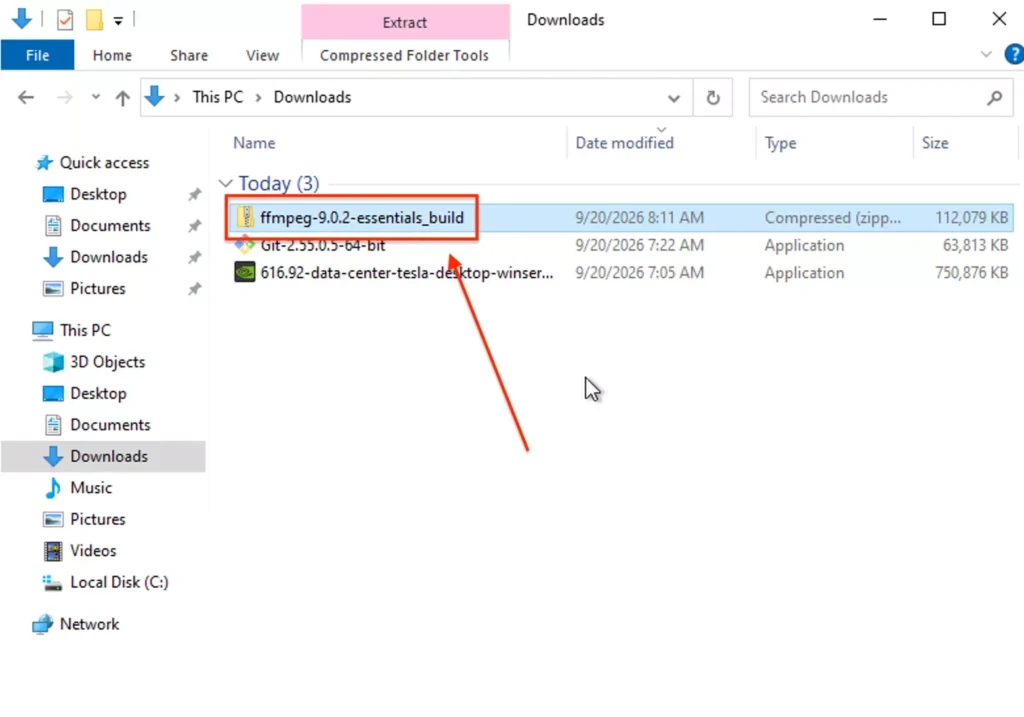
Extract the archive.
For example, I placed it under:
C:\ffmpeg\
My final FFmpeg executable was located at:
C:\ffmpeg\ffmpeg-9.0.2-essentials_build\bin\ffmpeg.exeOpen the extracted bin directory and confirm that ffmpeg.exe exists.
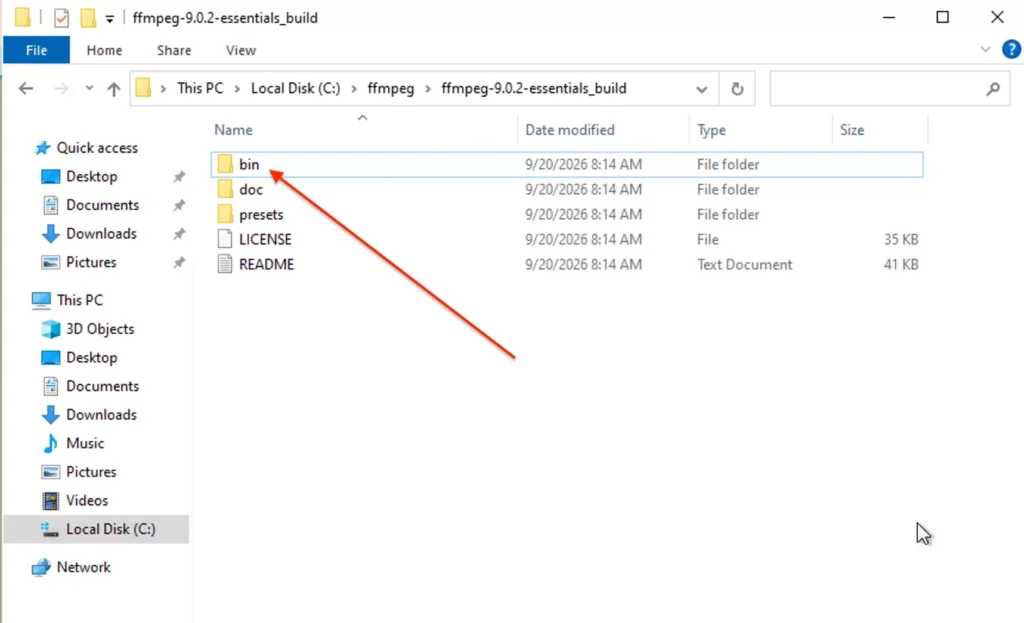
Test FFmpeg Using the Full Path
Run:
C:\ffmpeg\ffmpeg-9.0.2-essentials_build\bin\ffmpeg.exe -version
Change the folder name if your FFmpeg version is different.
Important: use:
-version
not:
--version
During my test, --version returned:
Unrecognized option '-version'.
Error splitting the argument list: Option not found
while -version worked correctly.
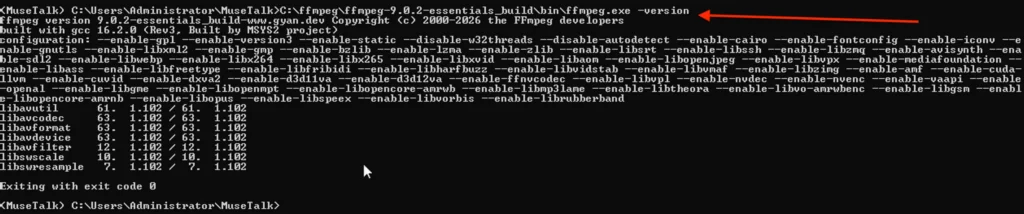
Fix: ffmpeg Is Not Recognized
You may successfully run ffmpeg.exe with its full path but still get:
'ffmpeg' is not recognized as an internal or external command
when running:
ffmpeg -versionThat happened in my Windows test as well.
Temporarily add FFmpeg to PATH:
set PATH=C:\ffmpeg\ffmpeg-9.0.2-essentials_build\bin;%PATH%Then test again:
ffmpeg -versionIt should now work. In my test, the command worked immediately after adding the FFmpeg bin directory to PATH.
This set PATH=... method applies to the current CMD session.
You can also permanently add the FFmpeg bin folder through:
Windows Search
→ Edit the system environment variables
→ Environment Variables
→ Path
→ Edit
→ New
Add:
C:\ffmpeg\ffmpeg-9.0.2-essentials_build\bin
The official MuseTalk documentation also recommends adding the FFmpeg bin directory to Windows PATH and verifying it with ffmpeg -version.
Step 9: Download MuseTalk Model Weights
MuseTalk includes a Windows batch file for downloading its required models.
Run this from the MuseTalk directory:
download_weights.bat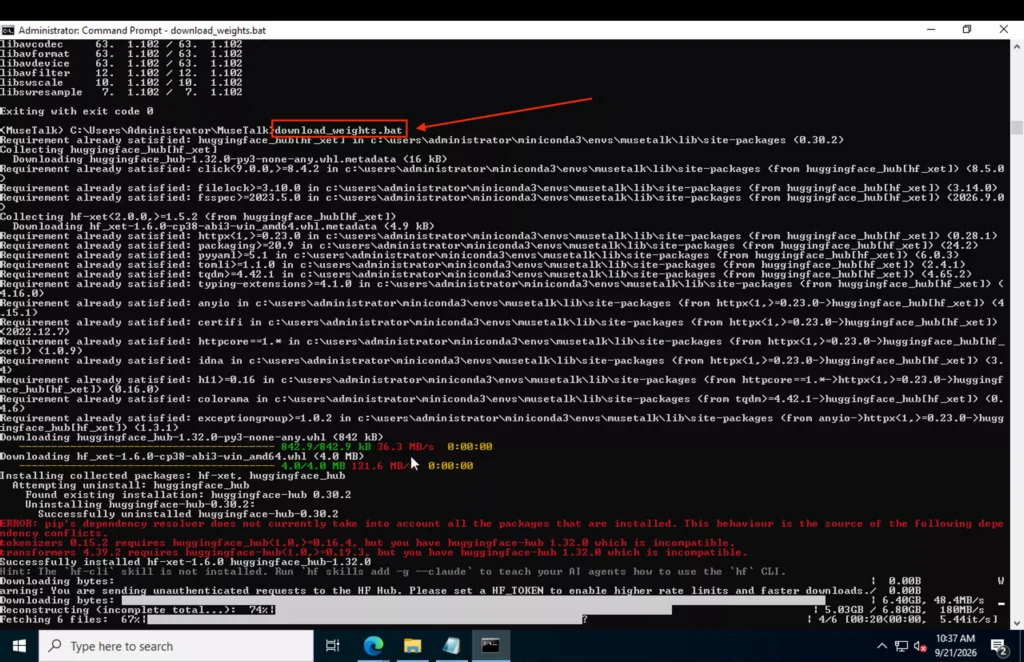
The model download is several gigabytes, so give it time to finish.
The script downloads MuseTalk, SD VAE, Whisper, DWPose, SyncNet, and Face Parse weights. The current official batch file downloads them into the models directory.
After it finishes, you may see:
All weights have been downloaded successfully!
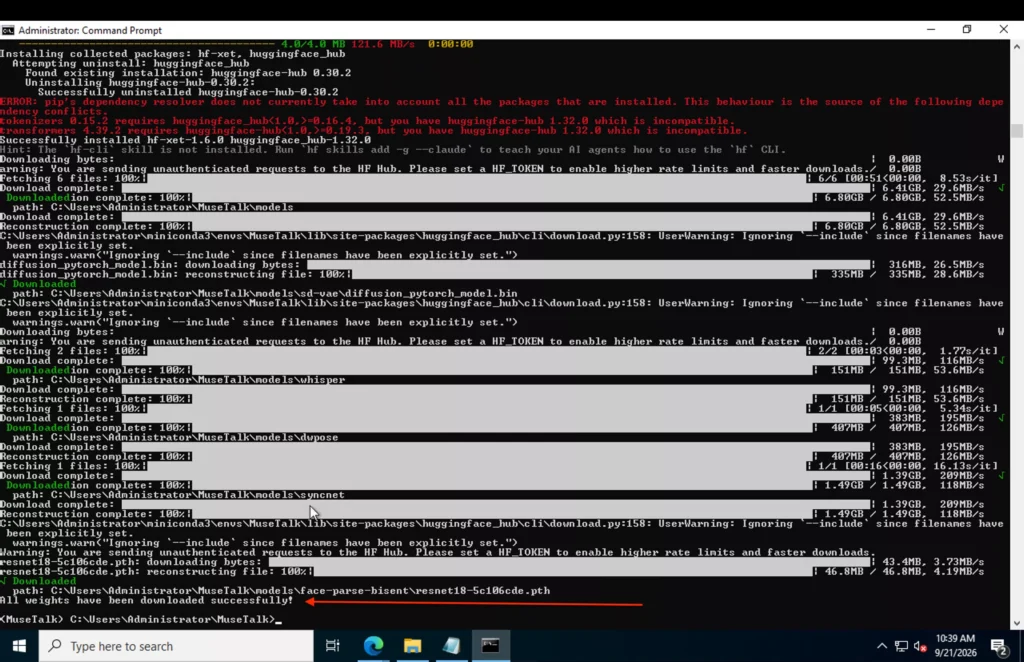
Important: Fix Hugging Face Hub After Running the Script
There is an important issue I encountered with the current Windows weight script.
The batch file runs:
pip install -U "huggingface_hub[hf_xet]"
which can upgrade huggingface_hub to a 1.x release. The current batch file contains this upgrade command.
In my test it installed:
huggingface_hub 1.32.0
but transformers 4.39.2 required:
huggingface_hub < 1.0
That produced a dependency conflict.
After the model download finishes, run:
pip uninstall huggingface_hub -y
Then install the tested compatible version:
pip install huggingface_hub==0.36.2
Confirm:
python -c "import huggingface_hub; print(huggingface_hub.__version__)"
Expected:
0.36.2Step 10: Check for Missing Model Files
Do not assume that:
All weights have been downloaded successfully!means every required file actually exists.
This happened during my test.
MuseTalk started and reported:
The following required model files are missing:
- SD VAE
- Whisper
- Face Parse
The current MuseTalk application specifically checks for:
models\sd-vae\config.json
models\whisper\config.json
models\face-parse-bisent\79999_iter.pth
along with its other required weights.
Check all three automatically:
python -c "import os; files=['models/sd-vae/config.json','models/whisper/config.json','models/face-parse-bisent/79999_iter.pth']; [print(('OK ' if os.path.exists(f) else 'MISSING ')+f) for f in files]"
You want:
OK      models/sd-vae/config.json
OK      models/whisper/config.json
OK      models/face-parse-bisent/79999_iter.pth
Fix Missing SD VAE Config
Run:
hf download stabilityai/sd-vae-ft-mse config.json --local-dir models\sd-vaeFix Missing Whisper Config
Run:
hf download openai/whisper-tiny config.json --local-dir models\whisper
Fix Missing Face Parse Model
Run:
hf download ManyOtherFunctions/face-parse-bisent 79999_iter.pth --local-dir models\face-parse-bisent
These commands fixed all three missing files in my test.
The completed folders looked like:
models
├── musetalk
├── musetalkV15
├── syncnet
├── dwpose
├── face-parse-bisent
│   ├── 79999_iter.pth
│   └── resnet18-5c106cde.pth
├── sd-vae
│   ├── config.json
│   └── diffusion_pytorch_model.bin
└── whisper
    ├── config.json
    ├── preprocessor_config.json
    └── pytorch_model.bin
This matches the model layout currently documented by MuseTalk.
Step 11: Run MuseTalk Gradio on Windows
Now you can start MuseTalk.
Make sure the Conda environment is active:
conda activate MuseTalk
Enter the repository if necessary:
cd C:\Users\Administrator\MuseTalk
Change that path if you cloned MuseTalk somewhere else.
Then start the Gradio interface:
python app.py --use_float16 --ffmpeg_path C:\ffmpeg\ffmpeg-9.0.2-essentials_build\bin
Replace the FFmpeg folder with your actual location.
The --use_float16 option reduces VRAM requirements and is the mode recommended in the official example for Windows.
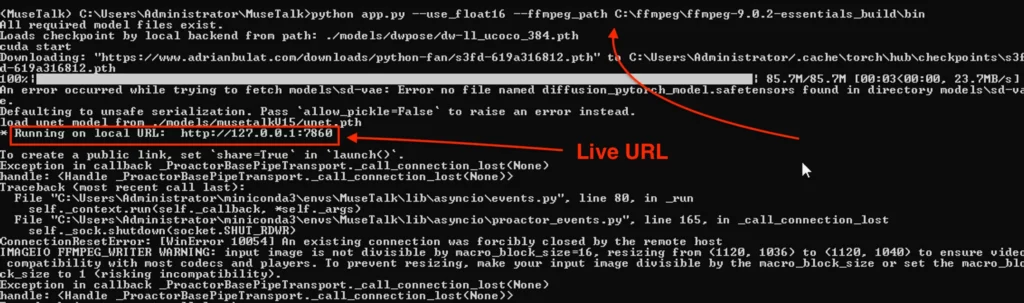
On the first start, MuseTalk may download an additional face detection checkpoint.
In my test I saw:
cuda start
followed by:
load unet model from ./models/musetalkV15/unet.pth
and finally:
* Running on local URL: http://127.0.0.1:7860
That means MuseTalk is running.
Open your browser and visit:
http://127.0.0.1:7860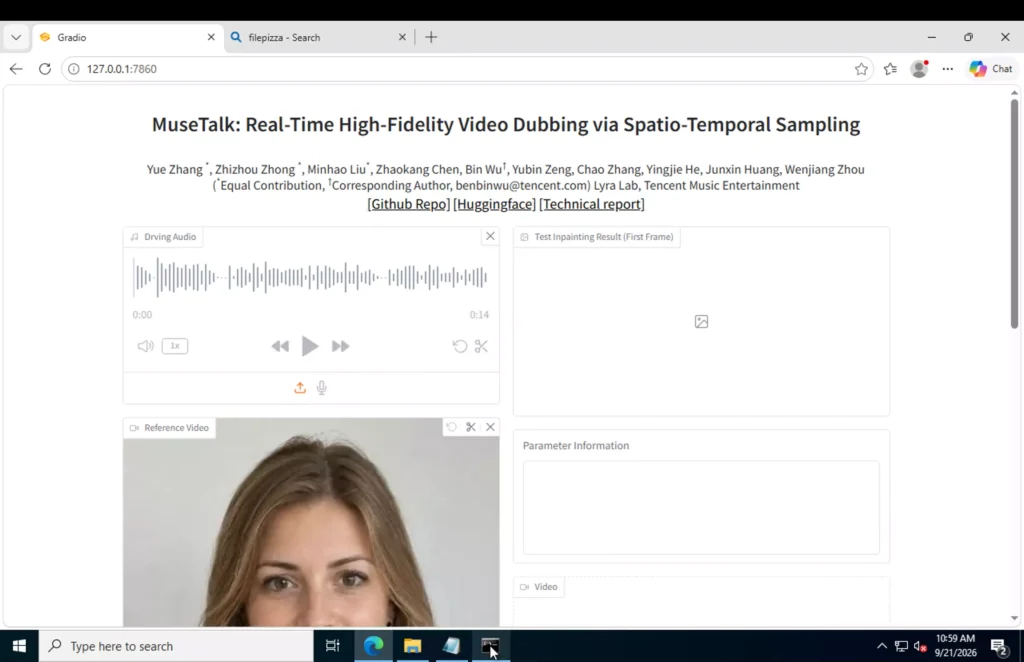
Step 12: Use the MuseTalk Gradio Interface
Once the web interface opens, provide your source face/video and audio input through the MuseTalk interface.
For your first test, use a short clip and short audio file. This makes it easier to confirm that CUDA, face detection, audio processing, FFmpeg, and video export are all working.
MuseTalk also allows you to generate the first frame while adjusting lip-sync-related parameters before processing the complete output. The project recommends this approach to help tune the result before spending time on the complete video.
Warnings You May See During Startup
diffusion_pytorch_model.safetensors Not Found
My successful Windows startup displayed:
An error occurred while trying to fetch models\sd-vae:
Error no file named diffusion_pytorch_model.safetensors found
followed by:
Defaulting to unsafe serialization.
The application then continued loading unet.pth and successfully started the Gradio server at:
http://127.0.0.1:7860
So if you see this message but the local Gradio URL appears afterwards, MuseTalk has still started.
Fix: ModuleNotFoundError: No module named 'mmpose'
If you get:
ModuleNotFoundError: No module named 'mmpose'
run:
pip install setuptools wheel
Then:
pip install chumpy==0.70 --no-build-isolation
Then:
mim install "mmpose==1.1.0"
Verify:
python -c "import mmpose; print(mmpose.__version__)"
Then run MuseTalk again.
Fix: Chumpy No module named 'pip'
If MMPose installation produces:
ERROR: Failed to build 'chumpy'
or:
ModuleNotFoundError: No module named 'pip'
do not repeatedly run the MMPose installation.
Install Chumpy separately:
pip install setuptools wheel
pip install chumpy==0.70 --no-build-isolation
Then retry:
mim install "mmpose==1.1.0"
This was the fix that worked in my Windows installation.
Fix: Hugging Face Version Conflict
If you get something similar to:
ImportError: huggingface-hub>=0.19.3,<1.0 is required
check the version:
python -c "import huggingface_hub; print(huggingface_hub.__version__)"
If it shows 1.x, run:
pip uninstall huggingface_hub -y
pip install huggingface_hub==0.36.2
Then start MuseTalk again.
Fix: Required Model Files Are Missing
If MuseTalk displays:
The following required model files are missing:
- SD VAE
- Whisper
- Face Parse
run:
hf download stabilityai/sd-vae-ft-mse config.json --local-dir models\sd-vae
hf download openai/whisper-tiny config.json --local-dir models\whisper
hf download ManyOtherFunctions/face-parse-bisent 79999_iter.pth --local-dir models\face-parse-bisent
Then retry:
python app.py --use_float16 --ffmpeg_path C:\ffmpeg\ffmpeg-9.0.2-essentials_build\bin
Fix: FFmpeg Path Not Found
This will fail if your actual installation is:
C:\ffmpeg\ffmpeg-9.0.2-essentials_build\bin
but you run:
C:\ffmpeg\bin\ffmpeg.exe -version
Windows will report:
The system cannot find the path specified.
That exact path mistake occurred during my test.
Find the folder containing:
ffmpeg.exe
and pass that bin directory to MuseTalk.
For example:
python app.py --use_float16 --ffmpeg_path C:\ffmpeg\ffmpeg-9.0.2-essentials_build\bin
MuseTalk’s application can add the supplied FFmpeg directory to PATH automatically if FFmpeg is not already accessible.
Check MuseTalk GPU Usage
While generating a video, open another Command Prompt window and run:
nvidia-smi -l 1
This refreshes NVIDIA GPU statistics every second.
Look at:
GPU-Util
Memory-Usage
Press:
Ctrl + C
to stop monitoring.
Starting MuseTalk Again Later
You do not need to repeat the installation every time.
Open Miniconda Prompt and run:
conda activate MuseTalk
Go to MuseTalk:
cd C:\Users\Administrator\MuseTalk
Then start it:
python app.py --use_float16 --ffmpeg_path C:\ffmpeg\ffmpeg-9.0.2-essentials_build\bin
Open:
http://127.0.0.1:7860
That’s all you need for future sessions.
Complete MuseTalk Windows Command List
Here is the main installation sequence in one place:
conda create -n MuseTalk python=3.10 -y

conda activate MuseTalk

python --version

git clone https://github.com/TMElyralab/MuseTalk.git

cd MuseTalk

pip install torch==2.0.1 torchvision==0.15.2 torchaudio==2.0.2 --index-url https://download.pytorch.org/whl/cu118

pip install -r requirements.txt

pip install --no-cache-dir -U openmim

mim install mmengine

mim install "mmcv==2.0.1"

mim install "mmdet==3.1.0"

pip install setuptools wheel

pip install chumpy==0.70 --no-build-isolation

mim install "mmpose==1.1.0"

download_weights.bat

pip uninstall huggingface_hub -y

pip install huggingface_hub==0.36.2

python -c "import huggingface_hub; print(huggingface_hub.__version__)"

python -c "import os; files=['models/sd-vae/config.json','models/whisper/config.json','models/face-parse-bisent/79999_iter.pth']; [print(('OK      ' if os.path.exists(f) else 'MISSING ')+f) for f in files]"
If those three model files are missing:
hf download stabilityai/sd-vae-ft-mse config.json --local-dir models\sd-vae

hf download openai/whisper-tiny config.json --local-dir models\whisper

hf download ManyOtherFunctions/face-parse-bisent 79999_iter.pth --local-dir models\face-parse-bisent
For a manually installed FFmpeg:
set PATH=C:\ffmpeg\ffmpeg-9.0.2-essentials_build\bin;%PATH%

ffmpeg -version
Finally:
python app.py --use_float16 --ffmpeg_path C:\ffmpeg\ffmpeg-9.0.2-essentials_build\bin
Then open:
http://127.0.0.1:7860
Frequently Asked Questions
1. Does MuseTalk work on Windows?
Yes. MuseTalk’s official repository provides Windows-specific model download, FFmpeg, inference, and Gradio instructions.
2. Which Python version should I use for MuseTalk?
Use Python 3.10 for this setup.
conda create -n MuseTalk python=3.10 -y
3. Do I need an NVIDIA GPU?
For practical local GPU inference, an NVIDIA CUDA-compatible GPU is recommended. MuseTalk’s official documentation reports testing the Windows Gradio interface on an RTX 3050 Ti Laptop GPU with 4 GB VRAM.
4. Which PyTorch version does this installation use?
This installation uses:
torch 2.0.1
torchvision 0.15.2
torchaudio 2.0.2
CUDA 11.8 PyTorch build
These versions match the current official MuseTalk installation instructions.
5. How do I know MuseTalk installed correctly?
Run:
python app.py --use_float16 --ffmpeg_path YOUR_FFMPEG_BIN_PATH
If you eventually see:
Running on local URL: http://127.0.0.1:7860
open that address in your browser.
6. How do I stop MuseTalk?
Return to the Command Prompt running MuseTalk and press:
Ctrl + C
7. Do I need to reinstall everything when I restart Windows?
No. Activate the existing Conda environment:
conda activate MuseTalkenter the MuseTalk directory, and run app.py again.
Conclusion
Windows installation takes longer than simply cloning the repository because MuseTalk depends on CUDA-enabled PyTorch, OpenMMLab packages, FFmpeg, and several gigabytes of model weights.
The most important things to check are:
nvidia-smiworks.- Python 3.10 is running inside the MuseTalk environment.
- PyTorch reports
CUDA available: True. - FFmpeg responds to
ffmpeg -version. - All required files exist under
models. - MMPose 1.1.0 imports correctly.
huggingface_hubremains below version 1.0.app.pyreacheshttp://127.0.0.1:7860.
Once those checks pass, the MuseTalk Gradio interface should be available locally on Windows.